

Add charts and pivots
Chart a sheet of a custom report, show it beside the spreadsheet as you work, and summarise a sheet into a pivot table that stays linked to its data.
Inside a custom report you can chart any sheet that has a header row, and summarise it into a pivot table. Both read the report's own data, so they follow the sheet when it is refreshed. To build a report first, see Build a custom report.
Chart a sheet
- Open the report and go to the sheet you want to chart. To chart part of it, select that range of cells first; otherwise the chart uses the whole sheet.
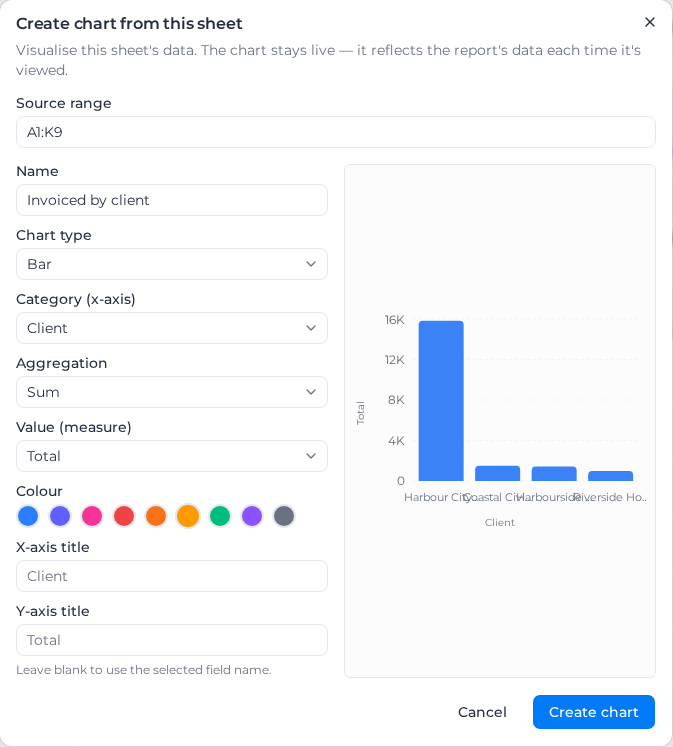
- In the toolbar, select the bar-chart icon, Create chart from this sheet.
- In Create chart from this sheet, check the Source range, for example
A1:K9, and give the chart a Name. - Choose a Chart type, then what to plot:
- Category (x-axis): the column the chart groups by, such as Client.
- Aggregation: Sum, Average or Count.
- Value (measure): the number to add up or average, such as Total. Count counts rows and needs no value.
- To plot more than one number on a Bar, Line or Area chart, select Add measure; see Compare several values side by side.
- Set how many Items to show, from 1 to 50, and the Category order; see Choose which categories show.
- Pick a Colour, and type an X-axis title or Y-axis title if you want different wording from the column names.
- Check the preview on the right, then select Create chart. You see "Chart created".
| Chart type | Use it for | Also asks for |
|---|---|---|
| Bar | Comparing categories, with up to five numbers side by side | More measures, optional |
| Horizontal bar | Comparing categories with long names | |
| Line, Area | A trend across dates or ordered categories, with up to five lines or areas | More measures, optional |
| Pie, Donut | Shares of a whole | |
| Stacked bar | Each category split by a second column | Series (stack by) |
| Scatter | Two numbers against each other | X axis (numeric) |
| Table (excerpt) | A read-only extract of chosen columns and rows for a dashboard | Columns, and an optional Row filter |
For a Table (excerpt), tick the Columns to show. To show only some rows, choose a column under Filter by column and tick the values to keep under Include values; rows matching any ticked value are shown. The table notes "Showing 12 of 40 rows" when it holds more rows than it shows.
Compare several values side by side
A Bar, Line or Area chart can plot up to five numbers for each category, such as crew needed against qualified workers by week. A bar chart draws them as bars side by side, and a line or area chart draws one line or area each. A legend names each one.
- Set the first number with Aggregation and Value (measure) as usual.
- Under More measures, select Add measure. In the new Measure 2 row, choose Sum, Average or Count, and the Value (measure).
- Type a Legend label if you want different wording in the legend. Legend label for measure 1 names the first number.
- Repeat for up to five measures in all. Select Remove to take one off.
If a measure has no column, or its column is no longer in the sheet, the dialog says "Pick a value column for every measure." and you cannot save until you choose one. A measure whose figures you don't have access to is left off the chart, and the legend marks it (hidden from you). To split one number by a second column instead, use a Stacked bar with a Series (stack by); a stacked bar plots one measure.
Choose which categories show
A chart shows up to Items to show categories. Category order decides the order they appear in, and which ones stay when there are more:
| Category order | Order on the chart | Kept when there are more |
|---|---|---|
| Automatic | Dates in time order, anything else largest value first | The latest dates, or the largest values |
| Largest value first | Largest value first, dates included | The largest values |
| Order in the data | The order categories first appear in the sheet | The first ones |
| Label, A to Z | Alphabetical, with numbers in number order, so W2 comes before W10 | The first ones |
Automatic recognises dates written as 2026-03 or 2026-03-15. For labels such as Mar 2026, W12 or 15/03/2026, choose Order in the data to keep the sheet's order. On a stacked bar, a category's value is the total of its whole stack, so Largest value first ranks stacks by their height. On a chart with several measures, it is the total of its measures.
When some categories are left out, the chart says "Showing 12 of 26 categories". Raise Items to show to see more. A Scatter chart has no category order, and Items to show sets how many points it plots.
When the range has no data, the dialog says "No data in this range. Include a header row and some values, then try again." A stacked bar without a series asks you to "Pick a series column to build a stacked bar".
See charts beside the sheet
Select Charts at the top of the report; the button shows how many charts the report has, for example Charts (1). A pane opens beside the spreadsheet with the charts for the sheet you are on. Switch sheets to see theirs; a sheet without charts shows "No charts for this sheet yet".
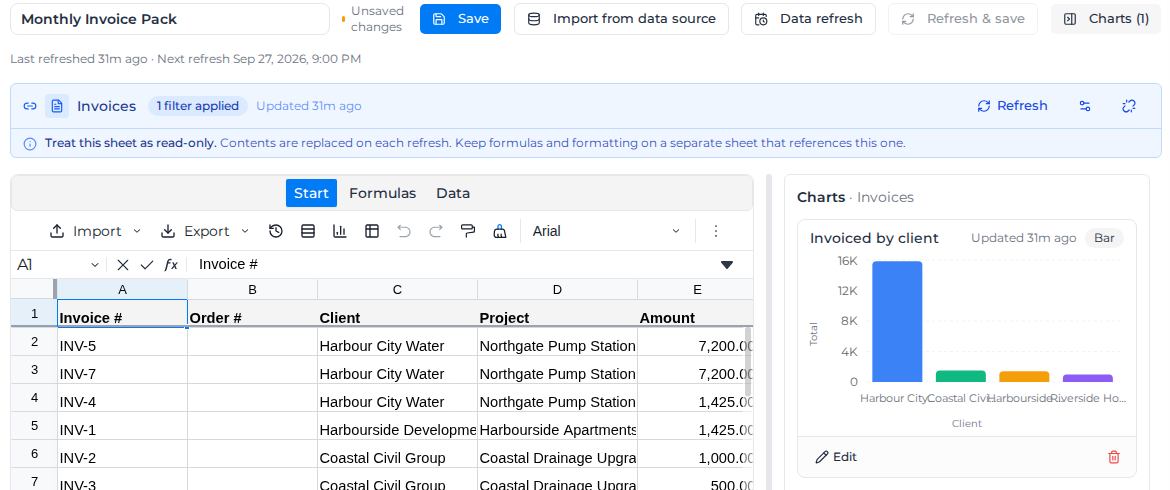
In the pane, charts redraw as you edit cells, before you save. Everywhere else, in the chart library and on dashboards, a chart shows the report as last saved, so save the report to share your changes.
Each chart card shows how old its data is, for example Updated 2h ago; see Keep report data current. Select Edit on a card to change the chart, or the delete button to remove it for everyone. Drag the edge of the pane to make it wider or narrower.
Every chart you make in a report also appears in the chart library, from where you can put it on a dashboard.
Build a pivot
A pivot summarises a sheet into a new sheet: one row per value of a column, with totals. Its cells are live formulas linked to the source, so when the source sheet changes or refreshes, the pivot recalculates.
- Go to the sheet you want to summarise, and select a range if you only want part of it.
- In the toolbar, select the table icon, Build a pivot.
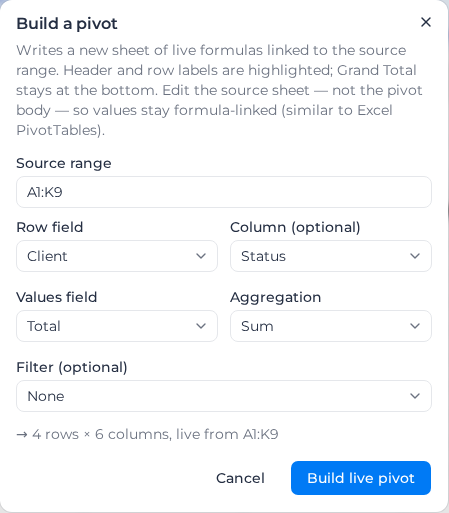
- In Build a pivot, check the Source range, then choose:
- Row field: the column that becomes the rows, such as Client.
- Column (optional): a second column spread across the top, such as Status.
- Values field and Aggregation: what to total, and whether to Sum, Average or Count it.
- Filter (optional): a column whose values you can untick to leave out.
- The line under the fields gives the size of the result, for example "→ 4 rows × 6 columns, live from A1:K9". Select Build live pivot.
A new sheet opens, named after its fields, such as Pivot · Client × Status. Its header row and first column are highlighted, a Total column closes a pivot with a column field, and Grand Total is always the bottom row.
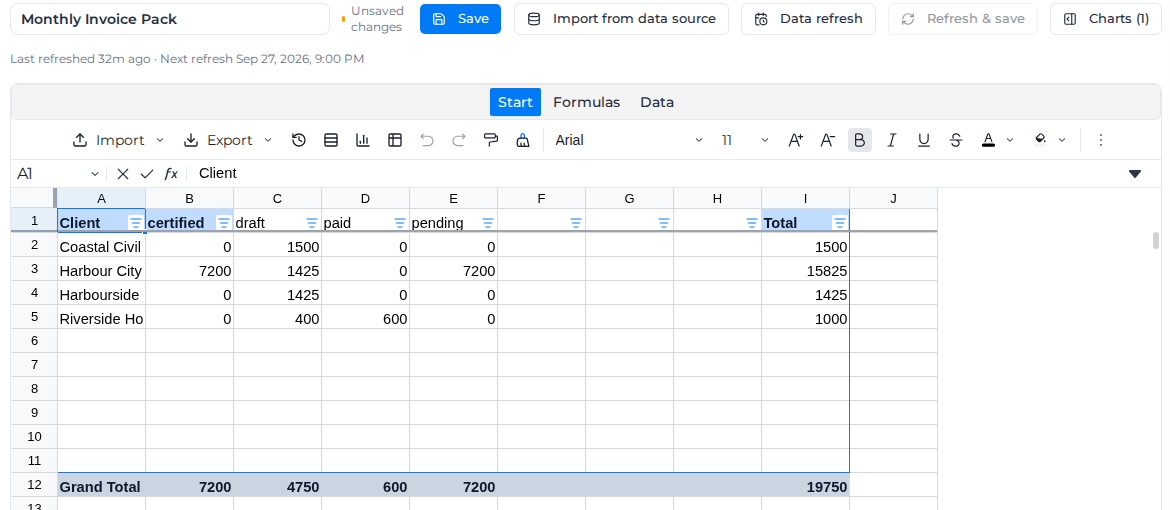
The pivot sheet leaves room below its rows, so new clients or statuses appear without rebuilding it. You can use the filter buttons in its header row, but you cannot type over its cells: change the source sheet instead, or build a new pivot for a different layout. Save the report to keep the pivot; it exports to Excel with the rest of the workbook.