

Use the chart library
Build charts straight from your Assignar Pay data or a saved report, format their numbers, and keep every chart and saved widget your team uses in one place.
The chart library holds every chart in your account: the ones you build here straight from your data, the ones made inside custom reports, and KPI and list widgets saved from dashboards. From here you can put any of them on a dashboard.
To open it, select Reports, then All Reports, and select the Chart library card.
Start from a ready-made chart
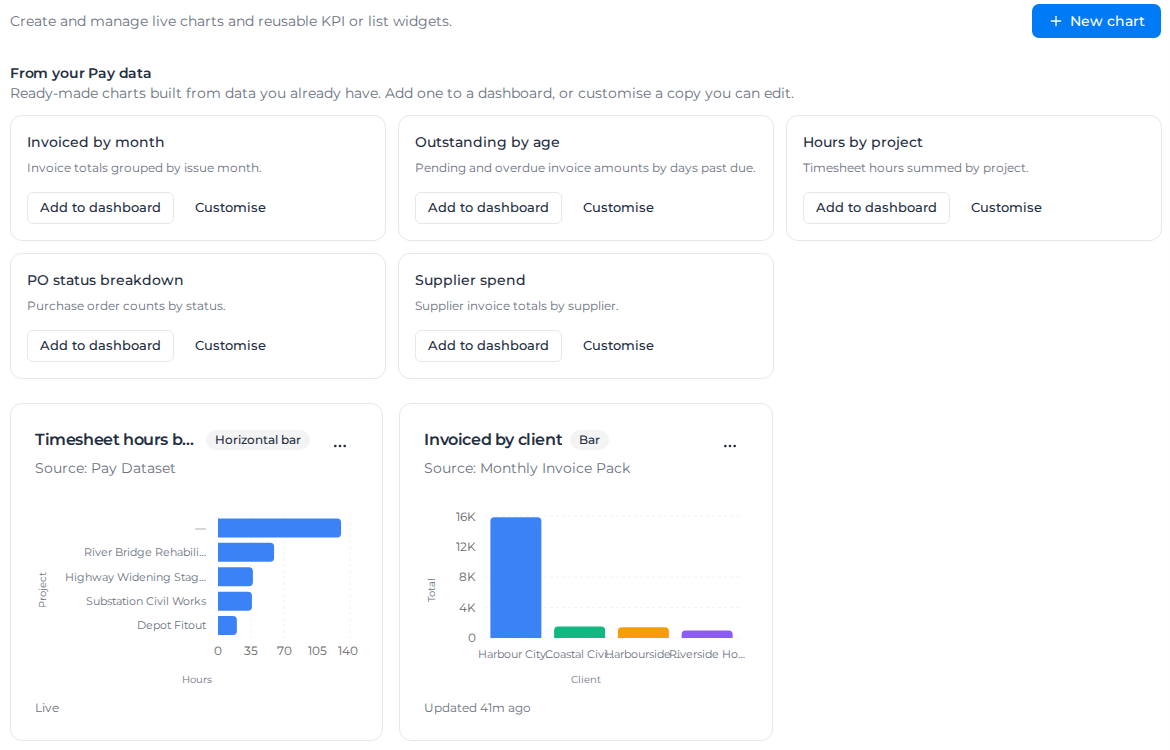
From your Pay data, at the top, has five charts that need no setup: Invoiced by month, Outstanding by age, Hours by project, PO status breakdown and Supplier spend.
- Add to dashboard places one on a dashboard you choose.
- Customise saves your own copy in the library, which you can then change like any other chart. Your copy is independent: changing it leaves the ready-made chart alone.
Build a chart
- Select New chart.
- Choose a source:
- Under From Pay data, pick a data source, grouped by area as in Report data sources. No report is needed.
- Under From report templates, pick a saved custom report, then the sheet to chart. Optionally enter a Source range (optional) such as
A1:E20; leave it blank to use the whole sheet.
- Configure the chart. For a Pay data source, set the date filter if you want one period. It is Date Range on most sources, or named after the date it filters, such as Allocation Date; see Report on dates ahead of today. A quick range such as Next 30 Days is worked out again from today each time the chart loads, including in dashboard emails. Then choose the Chart type, Category (x-axis), Aggregation and Value (measure), how many Items to show, from 1 to 50, and the Category order. The order and the "Showing 12 of 26 categories" note work as for charts in a report. On a Bar, Line or Area chart, select Add measure to plot up to five numbers side by side, as for charts in a report.
- Set the Number format, Colour and axis titles if you want to (see below), and check the preview on the right. Select Continue.
- Name the chart, add a Description (optional), and select Save chart.
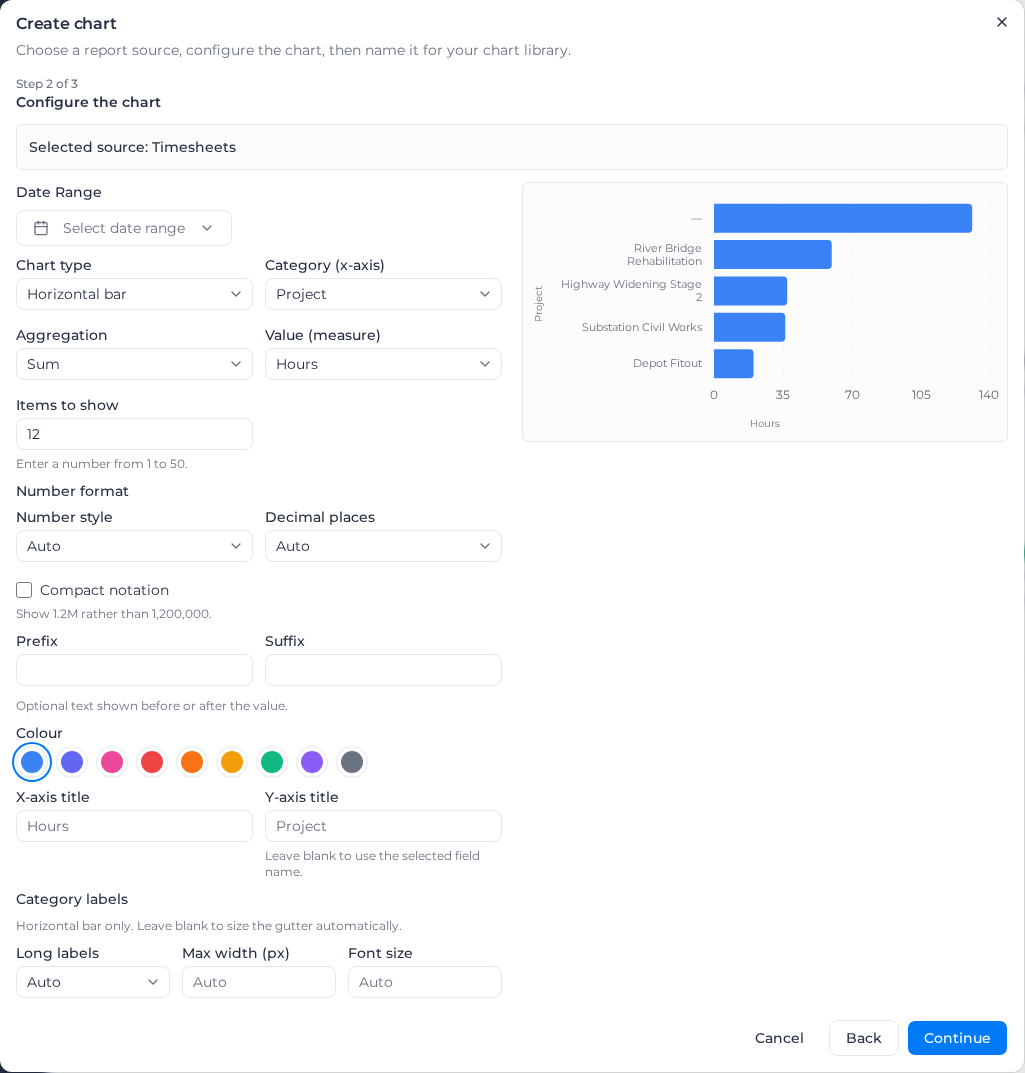
Columns that make no sense to add up, such as a pay rate, are left out of Value (measure).
A chart from Pay data reads your data every time it loads and shows Live under the plot. A chart from a report reads the report as last saved and shows Updated and the time, so save the report before you look for a change here.
Chart types
The library offers the report chart types (Bar, Line, Area, Pie, Horizontal bar, Stacked bar, Donut, Scatter) and two more:
- Stat shows one number, such as the total of all invoices, with no category.
- Map plots each row at its location, coloured by the category and sized by the value. It is offered for Timesheets, Dockets and Form Submissions. Nearby points group into clusters that split as you zoom, and rows with no location are left out: the chart says "3 of 40 rows have no location and are not shown." Only timesheets captured through a form have a location.
Format the numbers
Under Number format, choose a Number style: Auto, Plain, Currency or Percent. Currency uses your organization's region, so the symbol follows the account rather than the viewer's computer. Percent adds a % sign without multiplying, so 12.5 shows as 12.5%.
Decimal places is Auto or 0 to 4, Compact notation shows 1.2M rather than 1,200,000, and Prefix and Suffix add short text before or after each number. Formatting changes the numbers on the axis, in tooltips and on a stat, never the category labels.
A Horizontal bar chart also has Category labels: choose whether Long labels are truncated or wrapped, a Max width (px) for the label column, and a Font size.
Wide date ranges
A chart reads up to 5,000 rows. Over a long or open-ended period, the chart shows "Showing the first 5,000 rows — narrow the date range for a complete picture." Narrow the date filter to see the whole period.
How fresh a chart is
The line under each chart says where its numbers came from and how old they are:
| You see | What it means |
|---|---|
| Live | The chart reads your data every time it loads. There is nothing to refresh. |
| Updated 2h ago | The chart reads a saved copy: a report sheet, or Assignar Operations data. |
| Imported 3d ago | The sheet behind the chart was typed in or loaded from a file, so there is nothing to re-read. The time is when it was imported. |
| Not loaded yet | The chart's saved copy has never been loaded. Refresh it, or open and save the report it comes from. |
Hover over the line to see the exact date and time, whether the data refreshes by hand or on a schedule, and whether the last refresh failed. Updated turns amber when the data is older than expected; see Keep report data current. Live and Imported never turn amber. The same line appears on dashboard tiles.
Chart Assignar Operations data
With the Assignar Operations reporting add-on (see Reports), From Pay data includes an Assignar Operations group. Without a connected integration those sources are greyed out with "Requires a connected Assignar Operations integration."
An Assignar Operations chart reads a saved copy of the data, which keeps the library quick to load. Select Refresh on the chart's card to load the latest data; every chart using the same source and filters gets it too. A chart whose data was never loaded shows Not loaded yet. When you leave its date empty, the chart uses the last 30 days.
Manage charts
Select Chart actions (the … button) on a chart's card:
- Edit reopens the chart's settings. Changes show on every dashboard that uses the chart.
- Edit in report → opens the custom report the chart was made in. Only charts from a report have it.
- Add to dashboard places the chart on a dashboard you choose.
- Duplicate makes a separate copy, named with (copy).
- Delete asks "Delete "Invoiced by client"? This action cannot be undone." Dashboards that showed the chart say "Chart removed or unavailable" in its place.
Saved widgets
A KPI or Top by total list configured on a dashboard can be saved here with Save to library (see Build a dashboard). It appears with a KPI or List badge. Its Saved widget actions menu has Edit, Add to dashboard, Duplicate and Delete; editing it changes every dashboard that uses it, and deleting it leaves those dashboards saying "This saved widget was removed from the library".