

Keep report data current
Refresh a report's connected sheets by hand or on a schedule, see how old a report's numbers are, and what happens when a refresh fails.
A sheet you filled from a data source keeps the numbers it had when it was last loaded. To bring it up to date, refresh it by hand, or set a schedule so Assignar Pay refreshes the report for you and its charts and dashboard tiles stay current without anyone opening it.
Only sheets connected to a data source refresh. Imported files and sheets you typed yourself have nothing to re-read. To connect a sheet, see Build a custom report.
Refresh by hand
Open the report from Reports → All Reports → Report Templates, then use one of these:
| Button | What it refreshes | Saves the report? |
|---|---|---|
| Refresh, in the bar above a connected sheet | The sheet you are on | No: select Save afterwards |
| Refresh All, shown when the report has an Assignar Operations sheet | Every sheet connected to an Assignar Operations source | No: select Save afterwards |
| Refresh & save, at the top of the report | Every connected sheet | Yes |
Refresh and Refresh All reuse each sheet's saved filters. A date range set with a quick range, such as This Month or Next 30 Days, is worked out again from today on every refresh, including scheduled ones. A This Month sheet shows the new month after the 1st, and a Next 30 Days sheet always covers the 30 days from the day it refreshes. Dates you pick by hand stay as you picked them.
On a Pay Rates sheet, Last Pay Period and This Pay Period are worked out again from your payroll cycle on every refresh, including scheduled ones. The sheet shows the last or current pay period as of the day it refreshes.
Refresh & save writes straight to the saved report, so it is greyed out while you have unsaved changes: "Save or discard your changes first — "Refresh & save" writes to the saved report." If Unsaved changes shows as soon as you open the report, select Save first; Refresh & save is then available. It refreshes sheets one at a time and stops starting new ones after about 45 seconds. When some sheets are left out you see "Refreshed 3 sheet(s); 2 could not be refreshed", and a schedule is the better choice for a report that large.
Your organisation runs one Refresh & save or scheduled refresh at a time, and you can run one Refresh & save at a time. The Refresh and Refresh All buttons are not affected. When Refresh & save can't start, nothing in the report changes, and the message says why:
- "Reports are busy refreshing right now. Try again in a minute." Other refreshes are running, in your organisation or elsewhere.
- "You already have a refresh running. Wait for it to finish, then try again."
- "Several refreshes have run in the last few minutes. Try again in a few minutes."
- "Report refreshes are paused right now. Try again later."
- "Could not start the refresh. Try again in a minute." Something went wrong on our side before any sheet was refreshed.
Refresh on a schedule
- Open the report and select Data refresh at the top. The button appears once at least one sheet is connected to a data source.
- Under Refresh, choose how often:
- Off, the default for every report.
- Every hour.
- Every N hours, then enter the Hours between refreshes, from 1 to 168 (a week).
- Daily, then choose a Time (on the hour) and Timezone.
- Weekly, then choose a Day of week, Time and Timezone.
- Select Save schedule. You see "Refresh schedule saved".
Timezone offers Australia/Sydney, Australia/Brisbane, Australia/Perth, Pacific/Auckland, Asia/Singapore, Europe/London, America/New_York and UTC.
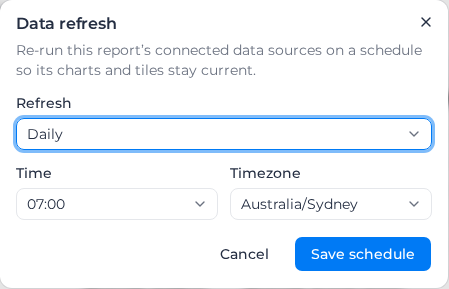
Refreshes run on the hour and never more often than hourly. An hourly schedule saved at 10:20 first runs at 11:00. If a run is missed because the service was unavailable, the report is refreshed once when it comes back rather than once for every missed run.
When other refreshes are running, a scheduled refresh waits for its turn, for up to about 40 minutes. If it still can't start, it runs on the next hour instead, and the report keeps its current data until then. This is not counted as a failure.
If a scheduled refresh is interrupted part-way, for example when Assignar Pay is under heavy load, the sheets it refreshed are saved, and the rest are marked as not refreshed with "2 sheets were not refreshed in time and will refresh on the next run". The whole report is refreshed again on the next hour. This is not counted as a failure either.
A scheduled refresh saves the report as it goes, and your charts and dashboard tiles show the new numbers.
What a schedule covers
- Every sheet connected to an Assignar Pay data source.
- Not Assignar Operations sheets: those refresh by hand in this release, so the dialog reminds you to use Refresh & save for them. When every connected sheet in a report uses an Assignar Operations source, the dialog will not save a schedule and says "Every connected sheet here uses an Assignar Operations source, and those refresh manually. Connect a Pay data source first, or leave the schedule off."
- Formulas on other sheets that refer to a refreshed sheet recalculate along with it.
Setting a schedule needs the same access as editing the report.
A scheduled refresh reads the data as the person who last edited the report. If your account limits access by location, it brings in only the rows inside that person's locations, so everyone who opens the report, and every chart and dashboard tile built from it, sees those rows. Invoices, purchase orders and supplier invoices come in only when every project and order on them is inside those locations. When you refresh by hand, the sheet uses your own access.
See how old the numbers are
The line under the report's name says when it was last refreshed and what happens next, for example "Last refreshed 2h ago · Next refresh Sep 28, 2026, 7:00 AM", or "Automatic refresh is off". Everyone who can open the report sees it.
The bar above each connected sheet, and every chart built from the report, show the same age: Updated 2h ago. It turns amber when the data is older than it should be:
- On a report with a schedule, older than the schedule's interval plus half an hour.
- On a report without one, or on an Assignar Operations sheet, older than 24 hours.
- As soon as a scheduled refresh fails, whatever the age.
Hover over it to see the exact date and time.
When a scheduled refresh fails
A failed refresh never clears a sheet: the report keeps its previous data and the "last refreshed" time does not move. The line under the report's name shows "Last refresh failed:" and the reason, and the report's creator and its last editor are notified the first time it fails, not on every attempt.
After five failures in a row, the schedule switches itself off and the line reads "Automatic refresh was turned off after repeated failures. Fix the data source, then turn it back on." Open each connected sheet, fix its filters with Edit Filters on its bar, then choose a frequency again under Data refresh.
A run that finds nothing to do says why, for example "Last run refreshed nothing: no sheets are connected to a data source".