

Build a dashboard
Put charts, report tables and ready-made widgets on one board, arrange them, and choose which board your team sees on Home.
A dashboard is a board of tiles: charts from your chart library, tables from your custom reports, and ready-made widgets such as site weather or this week's labour hours. You can have as many boards as you like, and one of them is your team's Home page.
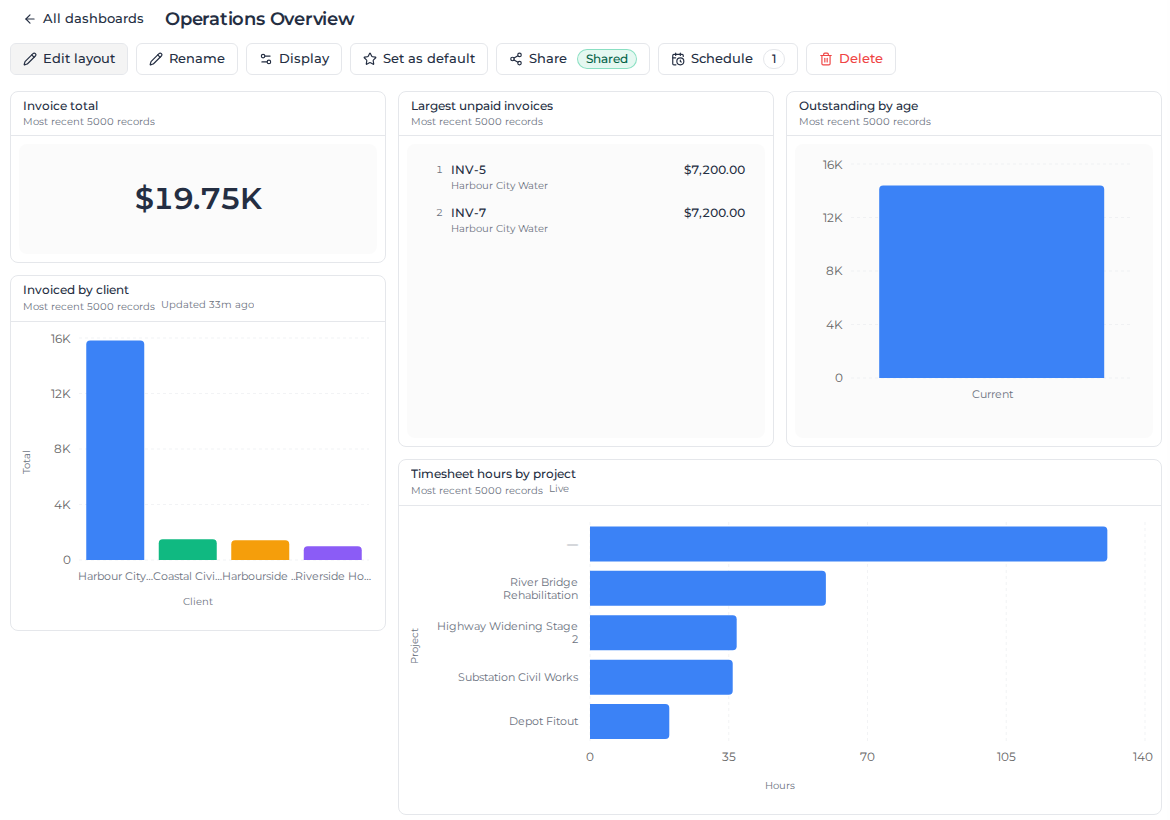
Your Home page is a dashboard
The first time anyone opens Home, Assignar Pay creates a board called Home with Site weather, Utilisation, Activity Feed, Week to date, Daily Feed, Active Projects, Chat with Milo and Today's Active Jobs.
Home shows your organization's default board, read-only, to everyone who opens it. To change it, open the board under Reports → Dashboards and edit it there. To show a different board on Home, open that board and select Set as default; the Default badge moves to it.
Create a dashboard
- In the sidebar, select Reports, then Dashboards.
- Select New dashboard, type a Name, and select Create.
The new board opens ready to edit, with "This board has no tiles yet. Use "Add tile" to get started."
Add tiles
Select Add tile, then the kind of tile:
- Chart: any chart or saved widget in your chart library. The tile stays linked, so editing the chart changes every board that shows it. You can also start from the chart: Add to dashboard on its card in the library.
- Table: pick a custom report, then one of its sheets. The tile shows the sheet's first 20 rows as saved and says "Showing first 20 rows" when there are more.
- Widget: a ready-made tile, listed in two groups.
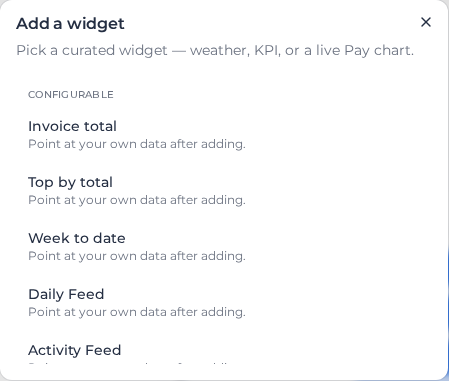
Configurable widgets are pointed at your own data or period after you add them:
| Widget | Shows |
|---|---|
| Invoice total | One number, a sum, average or count from a data source you choose |
| Top by total | A ranked list of the highest totals, grouped by a column you choose |
| Week to date | Labour hours, workers and jobs for the period, with a trend against last week |
| Daily Feed | Day by day: jobs, workers, assets and hours, with equipment hours and material deliveries |
| Activity Feed | Recent changes to invoices, timesheets, materials, dockets and schedules of rates, and recent form submissions |
| Active Projects | A map of projects with recent timesheets, pinned where the work happened, with a list view |
Ready-made widgets always show the same thing: Site weather, Invoiced by month, Outstanding by age, Hours by project, PO status breakdown, Supplier spend, Top projects by hours, Largest unpaid invoices, Chat with Milo, Connect to Assignar (to connect Assignar Operations), Utilisation (workers and assets allocated, over the last seven days) and Today's Active Jobs (orders scheduled to work today).
Each tile's data follows the permissions of the person looking at it. A tile whose data you cannot see says so instead of showing a smaller total.
Configure a widget
While editing the board, select Configure on the tile.
- Invoice total and Top by total: choose the Data source, the Aggregation, and the Measure to sum or average. Top by total also asks for the column to group by and how many rows to show. A source with no numbers to add up offers a count only. Under Number format you can set the style, decimal places, compact notation, and a prefix or suffix, as for charts.
- Week to date: the Period: Week to date, Last 7 days or This month.
- Daily Feed: the Window of days to cover and how many Days shown before Load earlier.
- Activity Feed: the Window, and under Show in this feed, Record changes, Form submissions or both. At least one must stay selected.
- Active Projects: the Window of recent timesheets to map.
Select Save to apply the change, or Cancel to leave the tile as it was.
To reuse a configured Invoice total or Top by total on other boards, select Save to library and give it a name. The widget moves to the chart library, and editing it there changes every board that uses it.
Show dollar amounts
Week to date and Daily Feed hide dollar amounts until you tick Show dollar amounts under Configure, because Home is visible to people who should not see labour cost. Without amounts you still see hours, counts and the percentage trend. The amount is burdened labour cost: pay rates plus the employer burden set up for payroll, not the charge to your client.
The setting applies to that tile only. Someone without access to pay rates still sees "Labour cost is not included — you do not have access to pay rates." Timesheets not yet processed through pay rates have no cost; the tile counts them, for example "35 timesheets omitted — not yet processed through pay rates", rather than quietly leaving them out.
Set the weather location
A new Site weather tile uses your company address from Settings → General, looked up when the board is created. When that address is missing or cannot be found, the tile says "No location set. Set one below for this widget."
- Select Set location on the tile (or Edit location to change it).
- Type an address and press Enter, then pick one of the suggestions. You can type a latitude and longitude instead.
Changing your company address later does not move an existing tile.
Arrange a board
A board opens ready to edit, with Add tile in its toolbar and handles on every tile. Select Done to see it as others do, and Edit layout to go back to editing. While editing:
- Drag a tile by its handle at the top left to move it, and drag its bottom-right corner to resize it. Tiles snap to a grid and close up gaps.
- Select the × (Remove tile) on a tile to remove it.
- Rename changes the board's name.
Layout changes save a moment after you stop dragging.
Display turns tile borders and tile titles on or off. It changes the read view only, including Home; while you edit, borders and titles always show.
Read a tile
Under each tile's title is the period it covers:
- A date range, when the chart or widget has one. A chart set to a quick range shows its name followed by the dates it covers today, such as Next 30 Days (2026-10-16 – 2026-11-15).
- Most recent 5000 records, when it has none: the tile reads your latest 5,000 records, which on a busy account is not all time.
- From the saved report, for a table.
- Live, for weather.
There is no single date range for a whole board yet: set the range on each chart.
Tiles built from charts and report tables also say how old their data is, such as Updated 33m ago, and turn amber when a report has fallen behind its refresh schedule; see Keep report data current. With tile titles turned off, the age moves to a small badge on the tile.
If a chart or report behind a tile is deleted, that tile says so and the rest of the board keeps working.
Delete a dashboard
Open the board, select Delete, then Delete board. You cannot delete your only board: Delete is greyed out, and hovering over it shows "You can't delete your only board."
Who can build dashboards
Dashboards need View finance reports, like the rest of Reports; Owners and Admins have it. Everyone who can open Home sees the default board there.