

Read the compliance matrix
See every worker against every competency their roles need, find the gaps and the tickets about to expire, and record what is missing from the same screen.
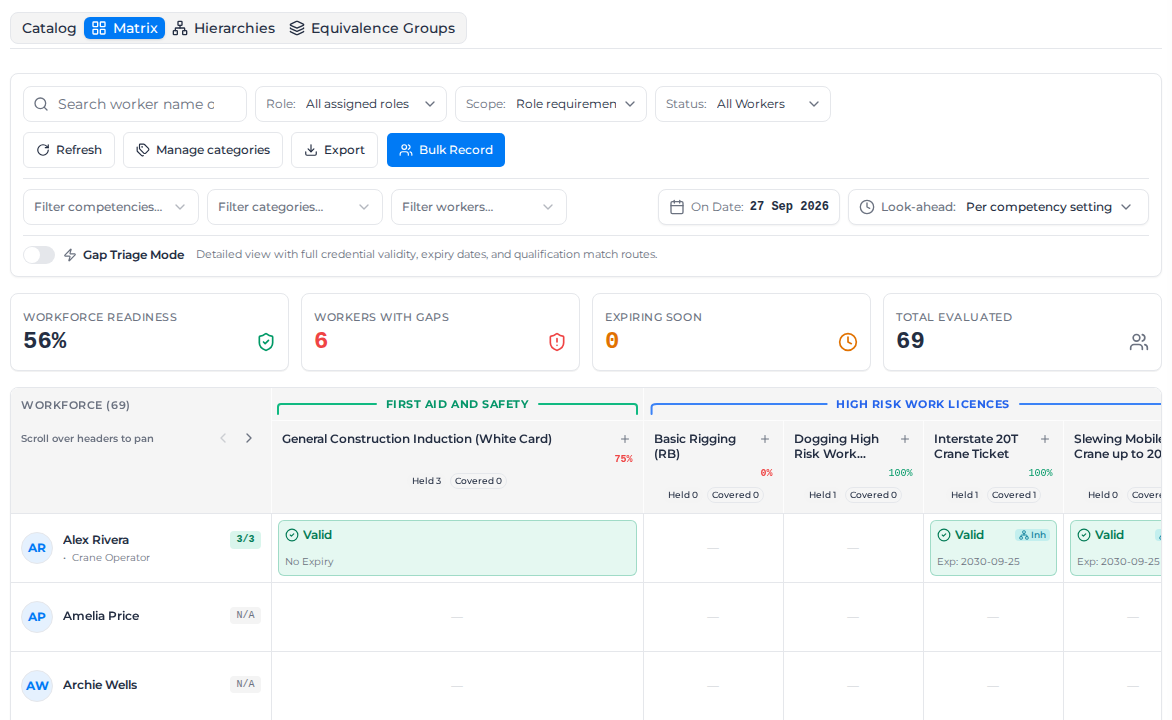
The Matrix tab puts your workers in rows and your competencies in columns, so you can see at a glance who is ticketed for site and who is not. Each cell shows whether the worker holds that competency, and whether their roles need it. Pick a project to see only that project's competencies, for the workers booked on it. Owners and Admins can open it.
Open the matrix
In the sidebar, select Compliance, then Competencies, then the Matrix tab.
A Manager who opens the tab sees Payroll Permission Required instead, because worker credentials are payroll records. They can still use the Catalog, Hierarchies and Equivalence Groups tabs.
Read the summary
Four figures sit above the grid:
| Figure | What it counts |
|---|---|
| Workforce Readiness | The average, across workers whose roles (or the selected project) need at least one competency, of the share of their requirements they meet. With a project picked, only the project's competencies count |
| Workers with Gaps | Workers missing at least one mandatory competency for their roles, or an induction the selected project needs. With a project picked, only the project's competencies count |
| Expiring Soon | Workers with a credential inside the look-ahead window. When you pick a window, the heading shows it, for example Expiring Soon (30d) |
| Total Evaluated | Every worker in the matrix |
Read the grid
Each row is a worker, with their roles under their name. The badge beside the name is how many of their required competencies they meet, for example 2/3: green when they meet all of them, red when they are missing any. With a project picked, the badge counts only that project's and its client's competencies. N/A means neither their roles nor the selected project need a competency.
Columns are grouped under your catalog's categories. Inductions always sit in their own Inductions group after the categories, whatever category they are filed under, and each one shows the project or client it belongs to, for example Project: Westgate Tower. Each column header shows:
- Held and the number of workers who hold that competency themselves.
- Covered and the number who don't hold it but meet it through a higher or interchangeable ticket. See Link related tickets.
- Mandatory, when the selected role or the selected project needs it.
- A percentage: of the workers whose roles (or the selected project) need it, how many meet it. It is green at 100%, amber from 80% and red below that.
The grid is wider than the screen. Scroll it sideways, or use the arrows beside Scroll over headers to pan.
Each cell shows one status:
| Cell | Meaning |
|---|---|
| Valid | The worker holds it and it is current. Exp: shows the expiry date, or No Expiry |
| Expiring | It expires inside the look-ahead window |
| Expired | It has expired |
| Pending | It is recorded but waiting for verification |
| Rejected, Revoked | It was refused at verification, or taken away |
| Not Effective | It is recorded with a start date that hasn't come yet |
| Missing | A role, or the selected project, needs it and the worker doesn't hold it |
| a dash | Not held, and nothing needs it |
Req on a cell means the worker's roles, or the selected project, require that competency. Inh means a higher ticket covers it and Equiv means an interchangeable ticket does. Renewal due means the worker is still covered, but the ticket itself needs renewing.
Conditional credentials on the matrix
For a competency with Conditional status switched on, such as a medical:
- A current credential marked Subject to review or Subject to conditions shows that status, in its colour, in place of Valid. It still counts.
- A Temporarily unfit credential shows its status in its colour and does not count.
- A credential past its Review date also shows Review overdue. This is a warning only.
- If the worker holds a Full credential and a conditional one for the same competency, the cell shows the Full one.
- The cell details show the Conditional status and Review date.
Narrow what you see
- Search worker name or ID… finds workers by name or employee ID.
- Role: shows the matrix for one role. Leave it on All assigned roles to check each worker against all of their roles.
- Project (shows No project until you pick one) shows only the competencies assigned to that project or to its client, today its inductions and its client's inductions, and checks every worker against them. Each of those inductions is mandatory, so a worker without it has a gap, even a worker with no role. Tickets and other projects' inductions are hidden, and the score, Workforce Readiness and the other totals count only the project's competencies. If nothing in the catalog is assigned to the project or its client, the matrix says so instead. Pick No project to go back to the whole matrix.
- Booked only appears next to the project once you pick one, and is on to start with. It shows only the workers with a shift on that project in the next 30 days, counted from today whatever On Date: is set to; the line under the filters says which days, for example Showing River Bridge's competencies for 3 workers booked in the next 30 days. Cancelled and deleted shifts don't count. When nobody is booked, the matrix says so: select Show all workers, or turn Booked only off, to see every worker. If people are booked but none of them has the role picked under Role:, it says No booked worker matches this role; select Show all roles to see them.
- Scope: Role requirements shows only the competencies a role needs, and no induction. All competencies shows your whole catalog, every induction included. With a project picked, both show only the project's competencies.
- Status: All Workers, Gaps Only (workers missing a mandatory competency) or Expiring Soon. Once at least one competency has Conditional status switched on, you can also pick Conditional, Review overdue or Temporarily unfit (under your own name for it).
- Filter competencies…, Filter categories… and Filter workers… pick the columns and rows to show. Filter categories… narrows the ticket columns only; the Inductions group stays.
Your choices for Role:, the project, Booked only, Scope:, Status:, the categories and the look-ahead window are remembered in your browser the next time you open the tab.
Check a future date
To see who will be ready for a job that starts later, select On Date: and pick the start date. Every cell is worked out as it will stand on that day, so a ticket that expires before then shows as Expired.
Look-ahead: sets how far ahead a credential counts as expiring. Per competency setting uses each competency's Alert lead time (days) from the catalog. You can also choose Next 7 days up to Next 1 year, or Custom….
Focus on the gaps
Turn on Gap Triage Mode to show only workers with a missing mandatory competency or a credential expiring soon. The grid header shows how many are at risk, for example 6 at risk. Workers with nothing to act on are folded into Show … workers with no current gaps or expiry alerts at the bottom of the list; select it to show them again.
Look at one worker's competency
Select a cell to open its details.
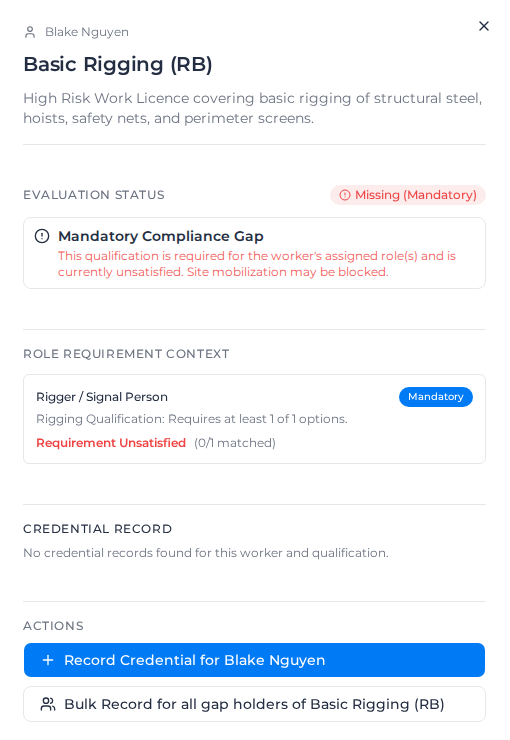
The panel shows:
- Evaluation Status, for example Missing (Mandatory) with a Mandatory Compliance Gap warning.
- Requirement Context: each of the worker's roles that needs the competency, and whether that requirement is met. An induction the selected project needs shows Required by the project or Required by the project's client.
- Qualification Match Path, when a higher or interchangeable ticket covers it: which ticket, and its expiry.
- Credential Record: the licence or card number, issue and expiry dates, days remaining, verification, any evidence files and notes.
Under Actions, record what is missing:
- Record Credential for and the worker's name, or Edit or Renew Credential for when they already hold it.
- Bulk Record for all gap holders of and the competency, to record it for everyone missing it at once. See Record for a whole crew.
The + in a column header does the same as Bulk Record for all gap holders of. Bulk Record above the grid starts bulk recording without anyone selected.
Export the matrix
Select Export, then:
- Export Current Selection (CSV) for the workers and competencies you have filtered to.
- Export All Evaluated Workers (CSV) for every worker the matrix evaluated. With a project picked, that is the project's competencies only and, with Booked only on, only the workers booked on it.
The file lists each worker's ID, name, roles and score, and a status for each competency, with its expiry date and, for a covered cell, the ticket that covers it. An induction's column heading ends in [Induction], and (Mandatory) when the selected role or project needs it. A conditional credential has its status and review date added at the end of the cell, for example [Subject to review; review by 2026-10-30; review overdue]. For a worker's certificates themselves, export an evidence pack.