

Record for a whole crew
Record the same ticket or induction for many workers at once, with one attendance sheet or a certificate for each.
After a site induction or a group training day, record the competency for everyone who attended in one go instead of worker by worker. Owners and Admins can do this.
Open bulk recording
In the sidebar, select Compliance, then Competencies. On the Catalog tab, find the competency and do one of these:
- Select the number in its Covered workers column, for example 4 workers.
- Select Edit, then Record for Workers at the top of the panel.
On the Matrix tab you can also select a worker's cell, then Bulk Record for all gap holders of and the competency, to start with everyone missing it.
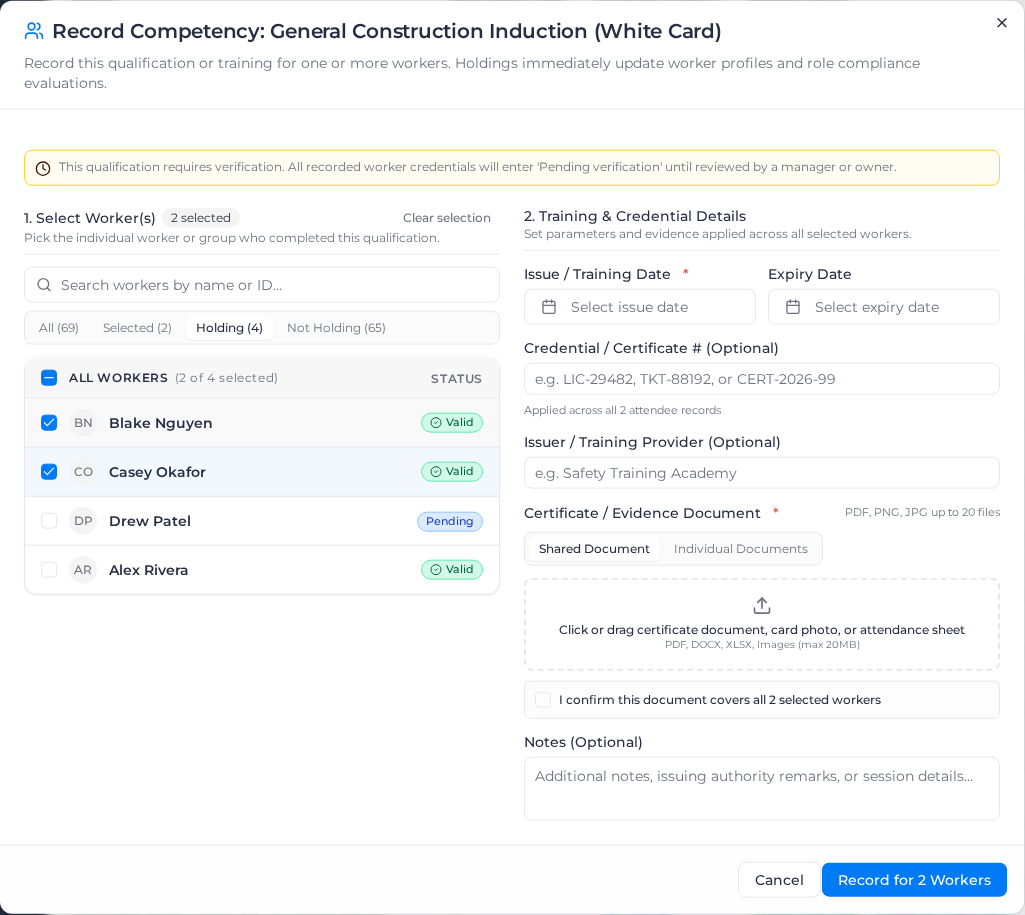
The dialog is titled Record Competency: and the competency's name. If the competency needs verification, a banner says every credential you record will be Pending verification until it is verified.
Choose the workers
- Under 1. Select Worker(s), find the workers. Use Search workers by name or ID..., or the filters:
- All: every active worker.
- Selected: the ones you have ticked.
- Holding: workers who already hold this competency, useful for a renewal round.
- Not Holding: workers who do not.
- Tick each worker. Each one shows their current status: Valid, Expiring, Expired, Pending, Rejected, Future Effective or Not held. For a competency with Conditional status switched on, a worker whose credential is Temporarily unfit shows that instead of Valid.
- To tick everyone in the list, tick the box in the list header. Once every filtered worker is ticked, select Select all and the number of workers in company to include everyone.
Enter the training details
The right-hand side reads 2. Training & Credential Details when several workers are ticked, or 2. Credential for and the name when only one is. For a single worker who already holds the competency, it says the new record will replace the current one once it takes effect.
- Enter the Issue / Training Date and the Expiry Date. Type the date, or choose the month and year. Fields the competency requires are marked with an asterisk. A date that is not a real day shows "Enter a date as" and the form to use. A date outside the years the calendar offers shows "Enter a date between" and the earliest and latest days. For an induction, the first date reads Completion Date. If the induction has a validity, the Expiry Date fills in with the completion date plus the validity; you can still change it.
- Optionally enter a Credential / Certificate # (Optional) and an Issuer / Training Provider (Optional), for example Safety Training Academy. They are recorded on every selected worker's credential.
- Under Certificate / Evidence Document, choose how you are providing evidence:
- Shared Document: one file for everyone, such as an attendance sheet or sign-in register. Add the file, then tick I confirm this document covers all the selected workers.
- Individual Documents: a separate certificate or card photo for each worker. Add each worker's file under their name.
- No Attachment: only offered when the competency does not require a document.
- Add any Notes (Optional).
- Select Record for and the number of workers (or the worker's name).
Bulk recording has no Status field. For a competency with Conditional status switched on, every credential it creates is Full, and it replaces a worker's earlier credential, including one marked Temporarily unfit. To record another status, use Change status on the worker's profile.
The upload accepts PDF, Word and Excel files, and PNG, JPG and WEBP images.
Check the result
When every worker is saved, Assignar Pay shows "Competency successfully recorded for" and the number of workers. Their checklists and the catalog count update straight away.
If some workers could not be saved, the dialog lists how many failed and how many were not sent. Select Retry Unsaved Workers to try those again.
If the connection dropped part-way, the dialog warns: "Some worker credentials could not be confirmed due to an interrupted connection. Please review their profiles before attempting to re-record." Open those workers' checklists first, so you do not record anyone twice.
Common errors before you save:
- "Please confirm that this document covers all selected workers.": tick the confirmation under the shared document.
- "At least one certificate or evidence document is required for this competency.": add a file, or choose Individual Documents and add one for each worker.