

Import cost codes
Paste up to 100 cost codes at once from a spreadsheet, upload a file of up to 1,000 to Milo, set GL accounts from a CSV file, or bring cost codes across from Assignar Operations.
You can paste cost codes from a spreadsheet, up to 100 at a time, instead of creating them one by one. For a longer list, upload it to Milo instead. If you use Assignar Operations, the records you import from it arrive with their cost codes already made.
Owners, Admins and Managers can import cost codes.
Paste cost codes from a spreadsheet
Set up your spreadsheet with these eight columns, in this order, and no header row:
Column What goes in it Code The code, for example SP-SURVType activity,role,rateitem,payitem,material,equipmentorotherDescription What the code covers Default Unit Up to 20 characters, for example m2oreach. Forroleandequipmentrows it must be hour, day or week; common spellings such ashrs,per dayorwkare saved as Hour, Day or WeekDefault Charge Rate The rate you invoice, as a number. A $sign and thousands commas are fineDefault Direct Cost Rate What it costs you. Leave the cell empty if you don't track it Category A category name. A new name creates the category Subcategory A subcategory name within that category. A new name creates it In the sidebar, select Settings, then Cost Codes, and select Import.
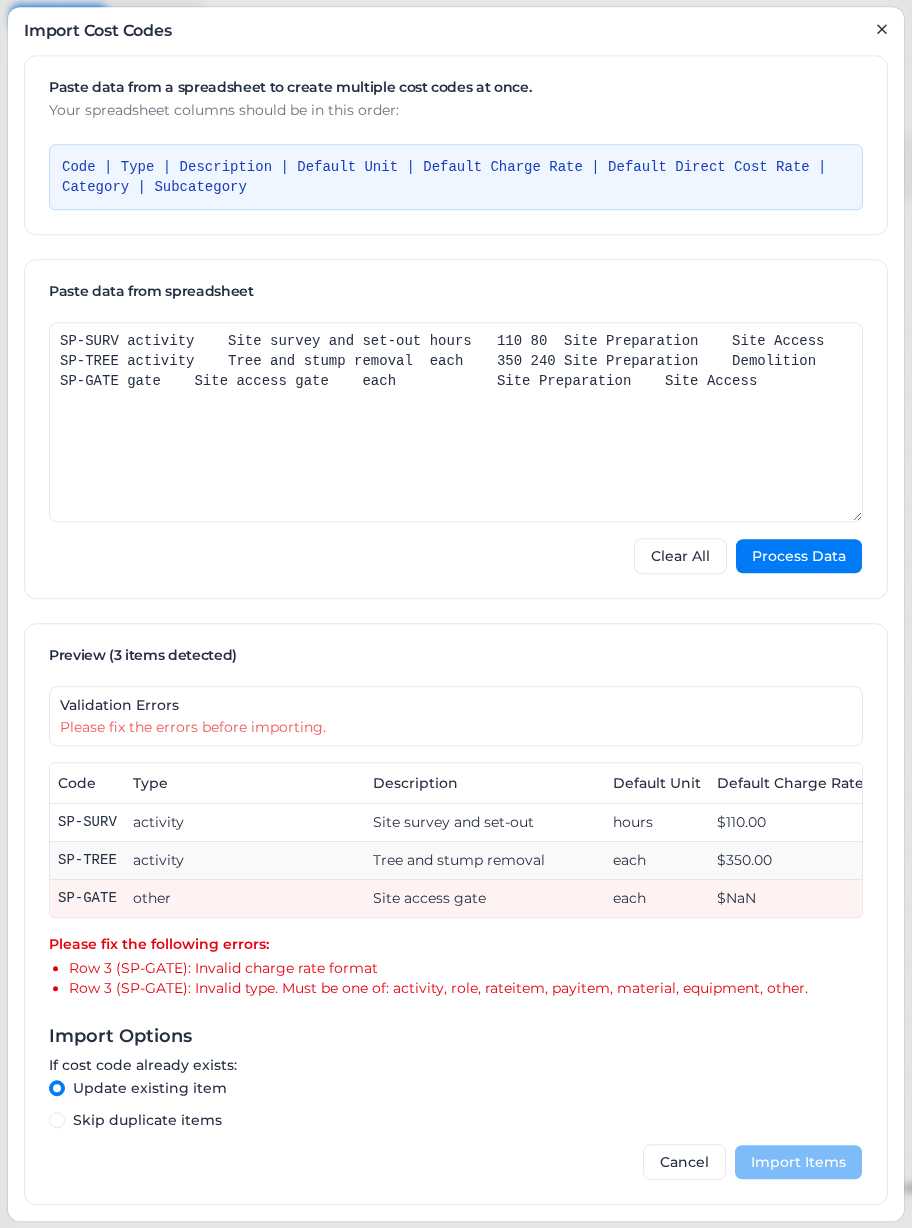
Copy the rows from your spreadsheet, paste them into Paste data from spreadsheet, and select Process Data.
Check the Preview. Each row shows Valid or Error, and the errors are listed under the table by row. Fix them in your spreadsheet, paste again and select Process Data again.
Under If cost code already exists:, choose Update existing item (the default) to overwrite a code that already exists with the same code and type, or Skip duplicate items to leave it as it is.
Select Import Items.
When the import finishes, the dialog shows Successfully imported with how many codes were Created, Updated and Skipped. Select Import More Cost Codes to paste another batch.
A role or equipment row with any other unit is not imported. The result lists it with the code and the unit you pasted, for example LAB001: Labor and equipment use Hour, Day or Week, not "each". Change the unit and import that row again.
Every imported code with the type activity, role, material or equipment also creates a matching activity, role, material or asset class under Resources, named after its description. To delete one of those cost codes later, delete that record first.
Fix rows with errors
Import Items stays greyed out until every row is valid. The errors you can see are:
| Error | What to do |
|---|---|
| Invalid type. Must be one of: activity, role, rateitem, payitem, material, equipment, other. | Change the Type cell to one of those words. Capitals are fine. |
| Invalid charge rate format | Put a number in the Default Charge Rate cell. It can't be empty. |
| Invalid direct cost rate format | Put a number in the cell, or leave it empty. |
| Code is required, Description is required, Default unit is required, Category is required, Subcategory is required | Fill in that cell. |
| Too many fields | The row has more than eight columns. Remove the extra ones. |
| Category name contains invalid characters | Remove any of < > : " / \ ? * from the category or subcategory name. |
If you paste more than 100 rows, Assignar Pay shows Too many items and Maximum of 100 items allowed per import. Split the list and import it in batches.
Import GL accounts from a CSV file
Use this to set the GL account on many existing cost codes at once. It changes only the GL account: it doesn't create cost codes or change anything else about them. You need permission to edit cost codes.
- In the sidebar, select Settings, then Cost Codes, and select Import GL accounts.
- Select Download template if you want a CSV with the right headers. The columns are
codeandgl_account_code. - Drop your CSV onto the dialog, or click to choose it. A file can have up to 5,000 rows and be up to 4 MB, and its first row must be the column headers.
- Under Map columns, check that one column maps to code and another to gl_account_code. Only a column named
gl_account_codeis matched for you. To read the accounts from another column, such asexternal_id, choose it yourself. - Select Run dry run. Nothing is saved yet. Each row shows Update, Unchanged, Skipped or Error, with a count for each.
- Select Start import of N rows, skip M.
Updated N, skipped M confirms it. Imported rows aren't undone automatically. To change an account afterwards, edit the cost code or import again.
Cost codes are matched on their code. Values are read as text, so leading zeros stay. If your spreadsheet program has already removed them, format the column as text and save the CSV again.
A row is an error when:
| Error | What to do |
|---|---|
| No cost code with code … | The code doesn't match any cost code. Check it in your file. |
| Code … is used by more than one cost code (…) | The same code exists for more than one type. Set these accounts on each cost code instead. |
| Duplicate code in file (row …) | The code appears earlier in the file. Remove one of the rows. |
| GL account must be 40 characters or fewer or GL account cannot contain spaces | Change the account in your file. |
| GL account must be N characters | Your GL code template fixes the width of every GL account. Change the account to that length. |
A blank GL account shows GL account is blank, skipped. An import never clears an existing account; do that on the cost code.
Select Download error report to get the rows that weren't imported, with the reason for each. Fix them and import the report again.
Import a file with Milo
Milo, the assistant built into Assignar Pay, takes up to 1,000 cost codes at a time, from a CSV or Excel file or a list pasted into the chat. The columns can be in any order, with a header row, and only Code and Description are needed. You check every row in a preview before anything is saved, and a row with the same code as an existing cost code updates it.
Unlike Import, Milo doesn't create categories or subcategories: a name that doesn't exist yet shows as an error in the preview. Create them on the Categories tab first. See Import data with Milo.
Bring cost codes across from Assignar Operations
When you import activities, roles, materials or asset classes from Assignar Operations, each arrives linked to a cost code. Timesheets imported from Assignar Operations bring the cost codes they use too.
You start those imports from the pages under Resources, not from the Cost Codes page. See Connect with Operations. Afterwards, filter the Cost Codes list by the source Assignar to find the new codes and move them into your own categories.