

Turn on AI captions
Let Assignar Pay describe your site photos so you can search them by what they show, and know what is sent to the AI provider when you do.
AI captions describe what each photo shows in one or two plain sentences: the work, materials, equipment and site conditions. Searching the gallery then finds photos by their contents, so excavator or formwork turns up photos nobody labelled that way.
Captions are off until an Owner or Admin turns them on, and one switch covers the whole account. Turning them on sends your photos to an AI provider outside Assignar Pay.
Turn captions on
You need permission to manage settings, which Owners and Admins have by default. Without it, the section below is not on your settings page.
- In the sidebar, select Settings, then General, and go to the Evidence captions section.
- On the Photo search captions card, turn on Enable AI photo captions.
- Read the Enable AI photo captions? dialog and select Enable captions. Cancel leaves captions off.
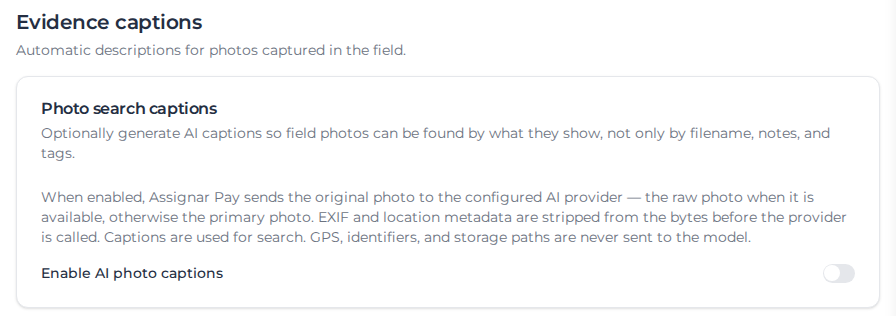
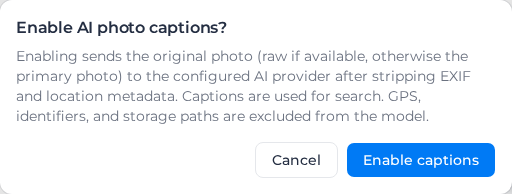
AI photo captions enabled confirms the change.
From then on every new photo in the account is captioned in the background, usually within a few minutes, whichever screen or device it came from. Switching on also captions up to 100 of the photos you already have, oldest first. The rest of an older library stays uncaptioned, so plan on captions covering what you add from now on.
Where captions appear
Open a photo and the caption shows as Caption in Photo Details, under the tags. You cannot edit a caption or ask for one on demand. Search matches caption text alongside file names, notes and tags; see Find photos.
People with the Field or Visitor role never see captions, and captions don't change what their searches return.
A photo with no Caption may still be waiting, or its caption may have failed. Nothing on screen tells the two apart.
What is sent to the AI provider
Each photo is sent with a fixed instruction to describe what is visible. The original camera file is sent when there is one, otherwise the photo as shown. Camera and location details are removed from the file before it is sent; the photo in Assignar Pay is unchanged.
File names, tags, notes, project and order details, and the people involved are not sent.
Anything printed on the image is sent with it. A date and address stamped on a site photo, a name on a sign, or text on a photographed drawing is part of the picture the provider receives.
Limits
- Only JPEG and PNG photos are captioned. Other formats are never sent.
- Captions are written in English, so a search in another language will not match them.
- You cannot leave out a project, a photo or a person. To keep a sensitive project out, leave captions off.
- Captions use your account's monthly AI allowance, shared with other AI features. When it runs out, captioning stops, and photos it was working on are not picked up again when the allowance resets.
Turn captions off
Turn off Enable AI photo captions and select Disable captions. This deletes every caption on the account; AI photo captions disabled means the text is already gone. Photos stay searchable by file name, notes and tags.
Turning captions back on does not restore deleted captions. It captions up to 100 of your oldest photos again, plus every new photo.
When the switch won't save
The switch flips back and one of these messages appears:
- Failed to enable photo captions, Failed to disable photo captions or Could not update photo caption settings: the change did not save. Try again.
- Insufficient permissions: your permission to manage settings was removed while the page was open. Reload the page.
- Failed to start photo caption backfill: captions are on, and reloading the page shows the switch on. New photos will be captioned, but your existing photos were not. To caption them, turn captions off and on again.