

Find photos
Search and filter a project's or an order's photo gallery, and work out why a search comes back empty.
You search one gallery at a time: there is no search across the whole account. Open the project or order, select the Photos tab, and use the search box and filters above the photos.
Search the gallery
Type into Search by file name or note.... The gallery updates a moment after you stop typing, and capital letters make no difference. The search looks at:
- the file name
- the note added at upload, or recorded with a field photo
- the tag names on the photo
- the photo's caption, when your account has AI captions switched on
Search matches whole words. conc finds nothing on a photo described as concrete; type concrete. Punctuation splits words, so slab-pour-01.jpg is found by slab, pour or 01.
When you type several words, a photo has to match all of them. Two things follow from that:
orbetween words finds photos matching either, as incrane or scaffold.andis searched as a word, socrane and scaffoldusually finds nothing. Leave it out.
Quotation marks and minus signs are ignored, so there is no phrase search and no way to exclude a word. A pasted sentence rarely matches, because every word in it must.
Filter the gallery
Below the search box:
- Source narrows to photos from the sources you tick, such as Workpack or Field response. Use it rather than typing a source name into the search box, which does not reliably match.
- Tags shows only photos carrying all the tags you tick.
- Order, on a project's gallery only, narrows to photos from the orders you tick.
- From and To set a date range.
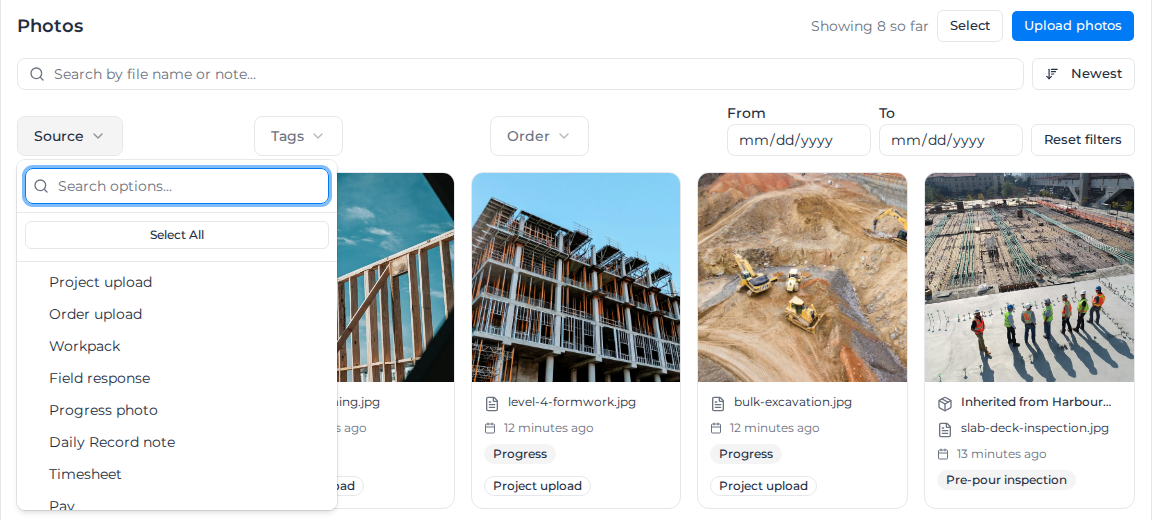
The search box and every filter apply together, so a photo has to pass all of them. A filter left on from earlier is the usual reason a search seems to stop working.
Source lists every source the gallery knows about. Timesheet and Pay are on the list but no photos come from them yet, so ticking only those always empties the gallery.
Reset filters clears every filter and the search box.
Sort the photos
The button beside the search box reads Newest or Oldest, the order you are in now. Click it to switch. The gallery opens on Newest.
Photos are always in date order, never by how well they match. The date is when the photo was added to Assignar Pay, not when it was taken; see what the date on a photo means.
Load more photos
The gallery loads 50 photos at a time. Showing 50 so far beside the heading counts what is loaded, not what matched. Scroll to the bottom, or click Load more, for the next 50. When Load more greys out, everything that matched is on screen.
When the search finds nothing
An empty gallery reads No photos available, the same message a gallery with no photos shows. Work back out in this order:
- If the message reads No photos from and a record's name, the gallery is narrowed to one workpack or Field response. Click Show all photos.
- Clear the search box. If photos come back, try your words one at a time to find the one that matches nothing.
- Click Reset filters.
A search longer than 200 characters is refused: the gallery shows Failed to load images instead of photos. Shorten the search and try again.
Searches are not saved
Nothing about a search is in the page address, so you cannot bookmark a search or send one to a colleague. The search, filters and sort clear when you reload the page or move to another tab on the record.
To keep a set of photos, select them and export them. See Export photos.
See the photos from one workpack or response
- Select the Linked results tab beside Photos.
- Find the workpack or Field response and click View photos.
The Photos tab opens with a banner reading Showing photos from and the record's name. Search and filters work inside it until you click Show all photos or Reset filters. The banner stays when you switch tabs and come back. See Review linked results.