

Export photos
Package a selection of site photos into a zip file, download it or email it to your team, and find it again before it expires.
When a client, an insurer or a dispute needs a set of photos, select them in the gallery and export them as one zip file, with a list of what is in it.
Exports start from a project's or an order's Photos tab. You need permission to view documents, which Owners, Admins and Managers have by default. Without it, Export is not shown.
Select the photos
- Search and filter the gallery until it holds what you want. See Find photos.
- Click Select.
- Click the photos you want, or click Select all loaded.
- Click Export.
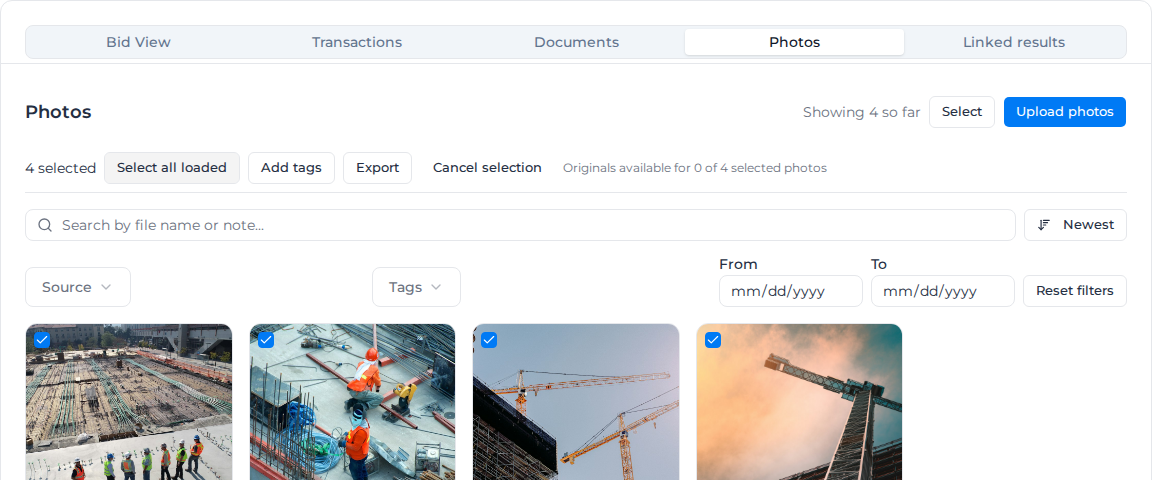
While you are selecting, clicking a photo selects it instead of opening it. Cancel selection leaves selection mode and clears what you picked.
Select all loaded selects only the photos loaded so far, 50 at first, and replaces what you had picked. Scroll to the bottom of the gallery, or click Load more until it greys out, before you use it.
Changing the search, filters or sort keeps your selection, even for photos no longer on screen, and they are still exported. Moving to another project or order clears it.
One export holds up to 1,000 photos. At the limit, You can export up to 1,000 photos at a time appears and further clicks do nothing.
Choose what to include and how to receive it
The Export photos dialog asks two questions.
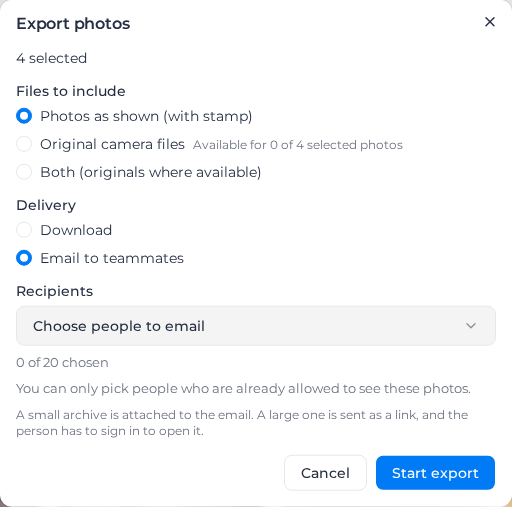
Files to include:
- Photos as shown (with stamp): each photo as the gallery shows it. This is the default.
- Original camera files: the unstamped file straight from the camera. Every selected photo must have one.
- Both (originals where available): every photo as shown, plus its original where there is one.
Only photos taken in a form with photo stamping switched on have an original; see Field types. They carry a small camera badge reading Original camera file available. The dialog shows how many of your selection have one, and Select only photos with originals in the selection toolbar narrows the selection to them.
Delivery:
- Download: you download the zip file yourself. This is the default.
- Email to teammates: choose people under Recipients, up to 20. Each gets an email with a View export button that opens the export in Assignar Pay after they sign in. As the dialog says, a small archive is attached to the email instead, and a large one is sent as a link.
You can only choose people on this account who can already see these photos; people on the Field or Visitor role are never listed. The list can include customer and supplier portal users, so check each name before you send client photos.
The dialog does not remember your choices. It opens on Photos as shown (with stamp) and Download each time.
Start the export
Click Start export. The dialog shows Preparing with the number of photos. You don't have to wait: click Close, and Export continues in the background appears with Open export page.
When the zip file is ready:
- For Download, the dialog reads Your export is ready with the file count and size. Click Download.
- For Email to teammates, the dialog reads Export ready and says how many teammates will get an email.
If it takes longer than about three minutes, the dialog reads Still preparing. We'll keep working in the background. Nothing is wrong; follow it on the export page.
You also get a notification when your export is ready or fails, under Background tasks in the notifications panel. Only the person who asked for the export is notified, and the notification clears after about a day.
What is in the zip file
The zip file is named after the date you asked for it plus a short code. All photos sit at the top level, with no folders. An original camera file sits beside its stamped copy with -raw added to its name, and photos that share a name are numbered -2, -3 and so on.
Every export includes manifest.csv and manifest.json, listing each file with its date, version, project and orders, tags, source, size and checksum, plus the address, note and uploader recorded with the photo. Open the CSV in a spreadsheet for an index to hand to a client.
Download within seven days
An export is kept for seven days from when you asked for it, not from when the zip file was ready, so a large export that took a while to build has less than seven days left. Then the zip file is deleted, the status reads Export expired, and Try again replaces Download archive. Nobody is warned before it expires, so keep your own copy if the photos may be needed again. The record of which photos you exported stays.
Find an export again
Each export has its own Evidence export page, reached from Open export page, the notification, a recipient's email or the export history.
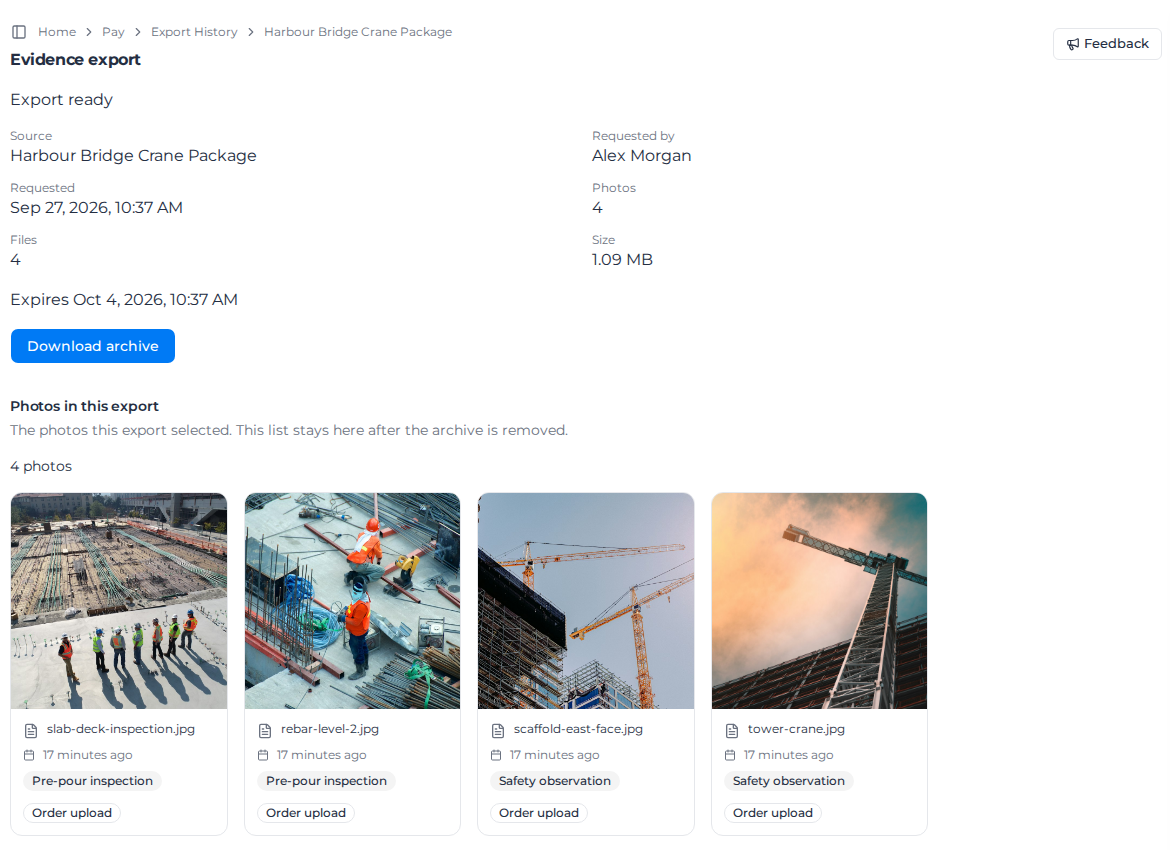
The page updates by itself. Its status reads Preparing export, Building archive, Export ready, Export failed or Export expired. It shows the Source (a link back to that Photos tab), Requested by, Requested, Photos, Files, Size and the expiry date, and Download archive while the file exists.
Photos in this export lists the photos you selected, even after the zip file has expired. A photo that has since been archived, or that you can no longer see, drops off the list, and the count says how many are no longer available.
For an emailed export, Emailed to lists each person with Sent as a link, Sent as an attachment, Not sent yet, We could not send this email, or a reason it was not sent, such as the person losing access to the photos.
Export history
Click Export History in the breadcrumb above an export's page to see every export on the account, not only yours, newest first, 25 to a page.

Each row shows the Source, who asked for it, when, the counts, size, Status, Expires, Download archive while the file exists, and View to open its page. There is no search or filter; use Next page to go further back. Exports from a deleted project or order are not listed.
When an export is refused
These appear in red in the dialog when you click Start export. Your selection stays, so fix the problem and click Start export again.
- Unable to start the evidence export. Please retry. The export could not be started. Click Start export again. The attempt stays in the export history as failed.
- This export is larger than the 512 MiB archive limit. Select fewer items or export without originals. Select fewer photos, or choose Photos as shown (with stamp).
- A message saying some or all of the selected photos have no original camera file. Choose Photos as shown (with stamp) or Both (originals where available), or click Select only photos with originals.
- Each recipient must be an account member who can view this evidence. Someone you chose has lost access to these photos. Remove them from Recipients.
- Some selected evidence is no longer available. A selected photo was deleted or moved out of your reach. Cancel the selection, reload the page and select again.
- Some selected photos have no recorded file size yet, so the export can't be checked against the 512 MiB limit. Try again in a few minutes or leave them out. A photo was uploaded moments ago.
When an export fails
If the zip file cannot be built, the dialog reads We couldn't build this export. with a reason, which also shows on the export's page and in the export history:
- The selection is larger than the 512 MiB archive limit. or The archive came out larger than the 512 MiB limit. Split the photos across two exports, or leave out the original camera files.
- Some of the selected photos are no longer available. A photo was deleted, or your access changed, while it was being built.
- You no longer have access to export this evidence. Your own access changed after you started.
- The export didn't start. Try again., This export couldn't be started. Try again. or This export stopped unexpectedly before it finished. Try again.
- Something went wrong while building the archive.
Try again in the dialog takes you back to the form with the same photos selected. Try again on a failed or expired export's page starts a new export with the same photos, files and recipients, checked again against today's data; if it cannot start, you see We could not start this export again. Try again in a moment.