

Manage API keys
Create an API key with the scopes and expiry your integration needs, copy it once, see when each key was last used, and revoke or replace keys.
API keys are managed in Settings → API Keys, under Data & Advanced in the settings menu. Owners and Admins can create, view and revoke keys. Other roles don't see the section.
An organization can have 3 active keys at a time. The badge on the Create API Key card shows how many are in use, for example 2 of 3 active. The badge and limit messages use your selected interface language.
Create a key
- Open Settings, then click API Keys under Data & Advanced.
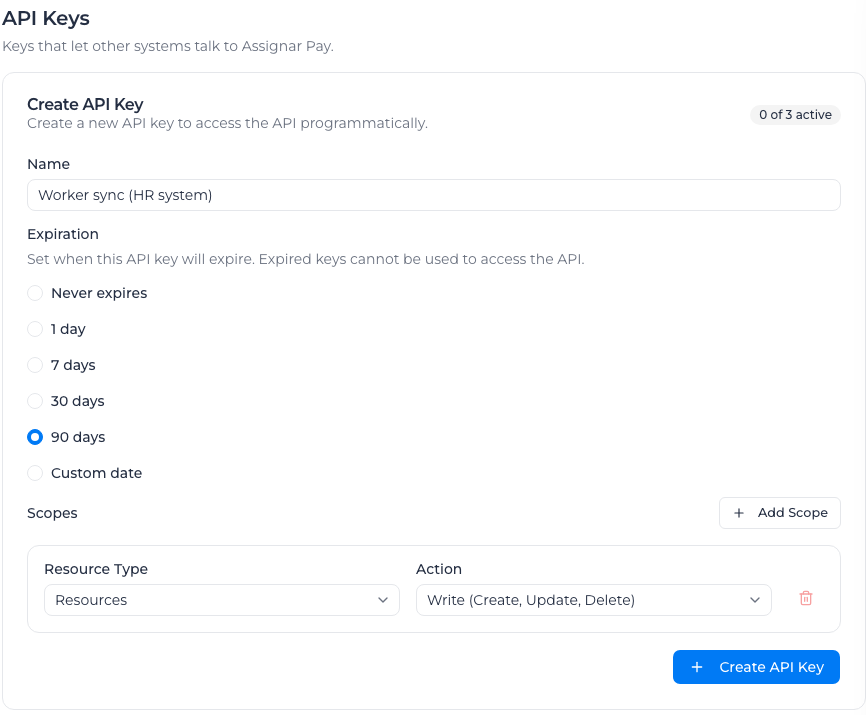
- In Create API Key, enter a Name that says which system uses the key, for example "Cost code sync (ERP)".
- Under Expiration, choose Never expires, 1 day, 7 days, 30 days, 90 days or Custom date. Custom date opens a Pick a date calendar; the date must be in the future.
- Under Scopes, set the first scope's Resource Type and Action. The form starts with Payroll and Read.
- To give the key access to another resource type, click Add Scope and set that row too. Remove a row with its trash icon; a key needs at least one scope.
- Click Create API Key.
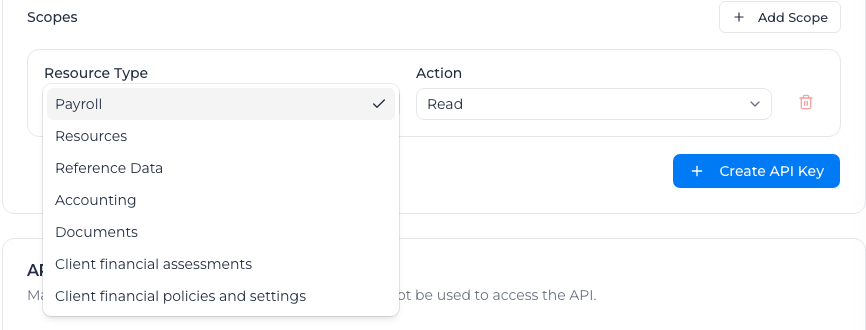
Resource Type offers Payroll, Resources, Reference Data, Accounting and Documents. Financial integrations can also select Client financial assessments and Client financial policies and settings, according to your current access. Action offers Read, Write (Create, Update, Delete) and All Actions. Which endpoints each combination unlocks is in the scopes table on Assignar Pay API.
Resources covers your workers, the people under Resources in Assignar Pay. You don't need the Payroll module for it. To create a key with Resources / Read you need permission to view workers. Write (Create, Update, Delete) and All Actions need permission to add, edit and delete workers: all three. If you're missing one, the key isn't created, and the message names the permission you need. With Write, a Resources key adds, changes and archives workers and employment types: see Create and maintain workers. A Payroll key can read workers but can't change them.
Client financial assessments / Read gives the integration access to private assessment details. Write (Create, Update, Delete) and All Actions also require your permission to update assessments. To delegate financial policy writes, you need both financial policy administration and organization settings access. A key can request an exception; a person with approval or override authority makes the decision.
Give each integration its own key with only the scopes it calls. A payroll export needs only Payroll / Read; a system that keeps your cost codes in step needs Reference Data / Write (Create, Update, Delete), and an HR system that keeps your workers in step needs Resources / Write (Create, Update, Delete). Importing competencies from Assignar Ops needs two scopes on one key: Reference Data and Payroll, both with Write (Create, Update, Delete). You can't change a key's scopes or expiry after creating it: create a new key instead.
Copy the key
The API Key Created dialog is the only place the key is ever shown. The key is hidden in the field; click the eye icon to show it, or the copy icon to copy it to your clipboard. Store it in your integration's secret store, then click I've copied the key.
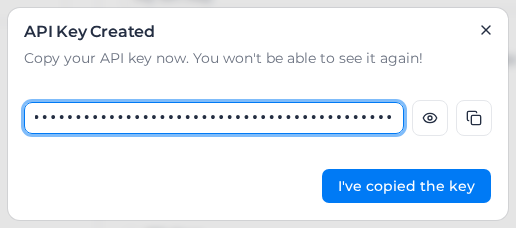
If you close the dialog without copying the key, it cannot be shown again. Revoke that key and create another.
Keys start with sk_. The list shows only the first few characters, so you can tell keys apart without seeing the rest.
Check your keys
The API Keys card below the form lists every key your organization has created, including revoked ones:
- Name and Key Prefix (the first characters of the key).
- Scopes: the scope as
resource:action, or the number of scopes when a key has more than one. - Created, Last Used (date and time of the most recent request, or Never) and Expires (a date, or Never).
- Status: Active, Expired or Revoked. Active rows have a green left edge, expired rows an amber one and revoked rows a red one.
A key that expires within 7 days shows an information icon next to its date; hover over it to see Expires tomorrow or Expires in 3 days.
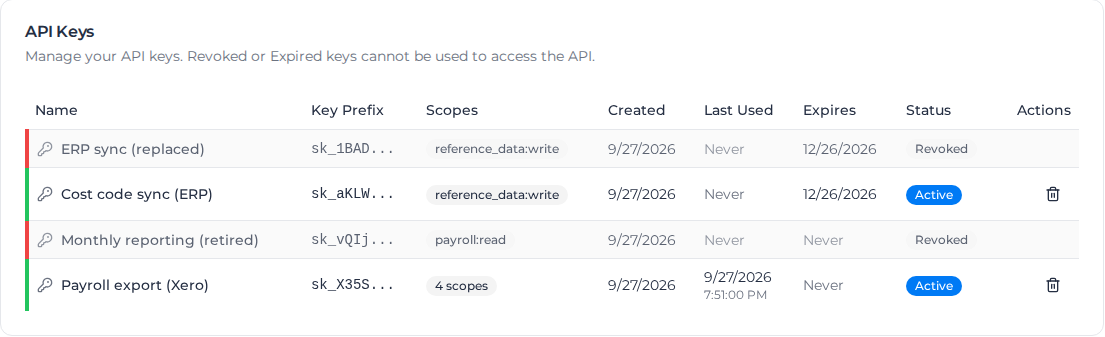
Use Last Used to find keys nothing calls any more, and revoke them.
Revoke a key
- In the API Keys list, click the trash icon in the key's Actions column.
- In Revoke API Key, click Revoke.
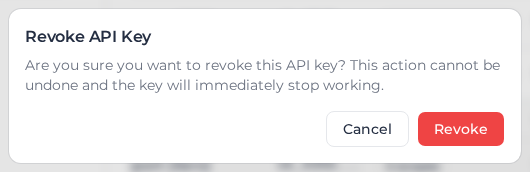
The key stops working straight away: its next request gets 401 with {"error": "Invalid API key"}. Revoking can't be undone, and the key stays in the list as Revoked. Expired keys show the trash icon too; revoked keys don't.
Replace a key without downtime
- Create a new key with the same scopes.
- Put the new key in your integration and check that its requests succeed. Its Last Used fills in once it has been used.
- Revoke the old key.
Do this before a key's expiry date, and whenever a key may have been exposed. Because only 3 keys can be active, you need a free place for the new key before step 1.
When you can't create a key
- API Key Limit Reached: you already have 3 active keys, and Create API Key is unavailable. Revoke a key you no longer use.
- An expired key still takes a place. The badge counts only keys that haven't expired, but until you revoke an expired key it still counts toward the limit of 3. If creating a key fails with Something went wrong while executing the operation. while the badge shows fewer than 3, revoke your expired keys and try again.
- No active subscription. Without an active subscription, Add Scope, Create API Key and the revoke buttons are unavailable. Existing keys stay listed.
- No API Keys section in Settings. Only Owners and Admins see it. Ask one of them to create the key.
