

Turn update notices on or off
Choose whether you see a short note the first time you open a new version of Assignar Pay, on the web and in the mobile app.
The first time you open a new version of Assignar Pay, a notice says Assignar has been updated. It usually carries a short poem about what changed. When an update only improves speed and fixes behind the scenes, it says Performance enhancements and fixes. instead. A short construction-themed celebration also plays across the screen, different from the last one. You see each notice once, on whichever device you open first. On the web the notice sits in the centre and stays until you dismiss it; you can keep using the rest of the screen. On the web the celebration brings the notice in: a crane lifts it into place, a pile driver hammers it home, or it waits until a ribbon is cut. You can use the notice once it has settled, a few seconds later. In the mobile app it sits above the bottom bar and closes by itself after a few seconds.
See earlier notes
To read the notes from earlier updates, use the arrows at the bottom of the notice. The left arrow goes back to older updates and the right arrow comes forward again. On the web, the left and right arrow keys do the same while the notice is selected.
To open the notes again after you have closed the notice, select your name at the bottom of the sidebar, then What's new. The notes open on the newest update, without the celebration. You can do this even with update notices turned off.
Read the changelog
For more detail, select Read the changelog on the notice. The changelog opens in a new tab. It is written up every week, usually on a Monday, so the newest updates may not be in it yet.
Turn update notices off
To stop seeing them, select Hide future update notices on the notice, or change the setting in your personal settings. Your choice applies on the web and in the mobile app.
- Select your name at the bottom of the sidebar, then Settings.
- Under Update notices, switch Show update notices on or off.
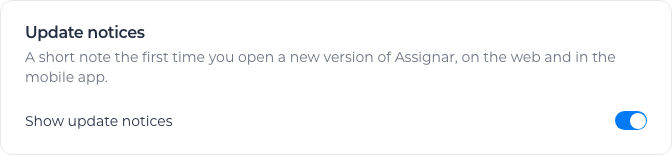
The switch saves as soon as you change it, and shows Update notices turned on or Update notices turned off. If it can't save, it switches back and shows Could not save your update notice setting. Please try again.
Turning notices back on does not show the ones you missed. You see the next one when Assignar Pay is next updated.