

Share workflows
Keep your own workflows private, build together in a shared workspace, and choose whose permissions a workspace runs with
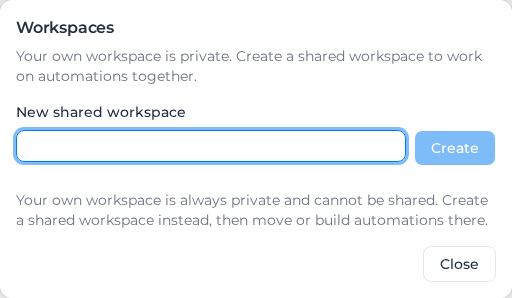
Workflows live in workspaces. Everyone who opens Connect gets their own, My workspace, which nobody else can open: not a colleague, not an Admin, not the account Owner. To work on workflows with other people, create a shared workspace and add them to it.
A workflow that only you can open stops being maintainable the day you are away. Build anything the business depends on in a shared workspace.
Create a shared workspace
- In the Connect toolbar, select Workspaces.
- Under New shared workspace, type a name, such as Finance automations, and select Create.
- Read the confirmation and select Create workspace.
The confirmation says what you are agreeing to: "Automations in this workspace will run with your permissions, and any member you add can build flows that use them." See Choose who a workspace runs as below.
My workspace cannot be turned into a shared one, because that would expose everything already in it. Create a shared workspace and move the workflow across instead.
Switch workspace
Once you belong to more than one workspace, the toolbar starts with a workspace menu. Pick the workspace to build in; shared ones show how many members they have.

Add or remove people
- Switch to the shared workspace, then select Workspaces.
- Under People in workspace name, pick a person and select Add. The list offers your organization's Owners, Admins and Managers.
- Read the warning and select Give access.
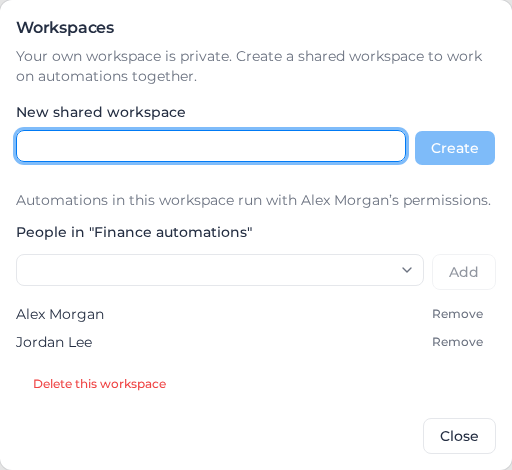
Everyone in a shared workspace can see and edit every workflow in it, and use the accounts already connected to it.
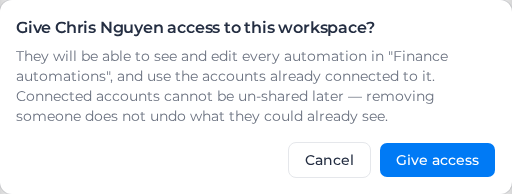
Adding someone cannot be fully undone. Remove stops their access from then on, but it does not un-share what they could already reach. Keep workflows that use sensitive accounts in a workspace with a smaller group.
Choose who a workspace runs as
Everything a workflow does in Assignar Pay, such as creating a purchase order or changing a worker's tags, is done as one person: the workspace's acting user. The toolbar shows who that is, for example Runs as Alex Morgan. What a workflow can read and change is exactly what that person can in Assignar Pay, and records it creates show them as the author.
- My workspace always runs as you.
- A shared workspace runs as the person who created it, until someone takes it over.
To take a shared workspace over, open Workspaces and select Run this workspace as me, then Run as me. The button appears when the current acting user has lost access, or when your role is the same as theirs or higher.
When the acting user leaves your organization or loses Connect access, the toolbar shows Needs re-authorisation and the workspace's Assignar Pay steps are refused. Its switched-on workflows are then paused, and every member gets a notification: "Connect workspace "Finance automations" needs re-authorising: the person its automations ran as has left or lost access, so they are paused. Open the workspace and choose "Run this workspace as me"." Taking the workspace over switches exactly those workflows back on. If some could not be switched on straight away, Resume paused automations appears in the dialog to try again.
Move a workflow to another workspace
- Select Move in the toolbar.
- Choose the Automation and where to Move to.
- To leave no copy behind, tick Remove it from this workspace after copying.
- Select Move automation.
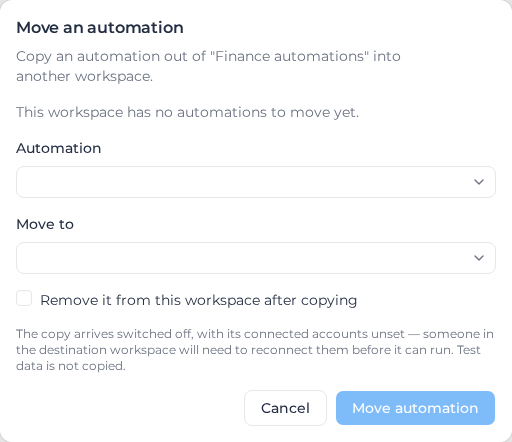
The copy arrives switched off, with its connected accounts unset. Someone in the destination workspace reconnects them, so an account never follows a workflow to a different group of people by accident. Test data is not copied either, so test it again before you switch it on.
Delete a shared workspace
In Workspaces, select Delete this workspace, then Delete workspace. Its workflows stop running and every member loses access. This cannot be undone, so move anything worth keeping out first.