

Photo library
Every photo attached to a project or an order, in one gallery on its Photos tab: where the photos come from and who can see them.
Site photos arrive from several places: uploads to an order, attachments on a workpack, pictures in a form response. The photo library gathers them into one gallery per project and one per order, so you can pull up a job's evidence without opening each record it came from.
Open a gallery
Open a project or an order and select the Photos tab.
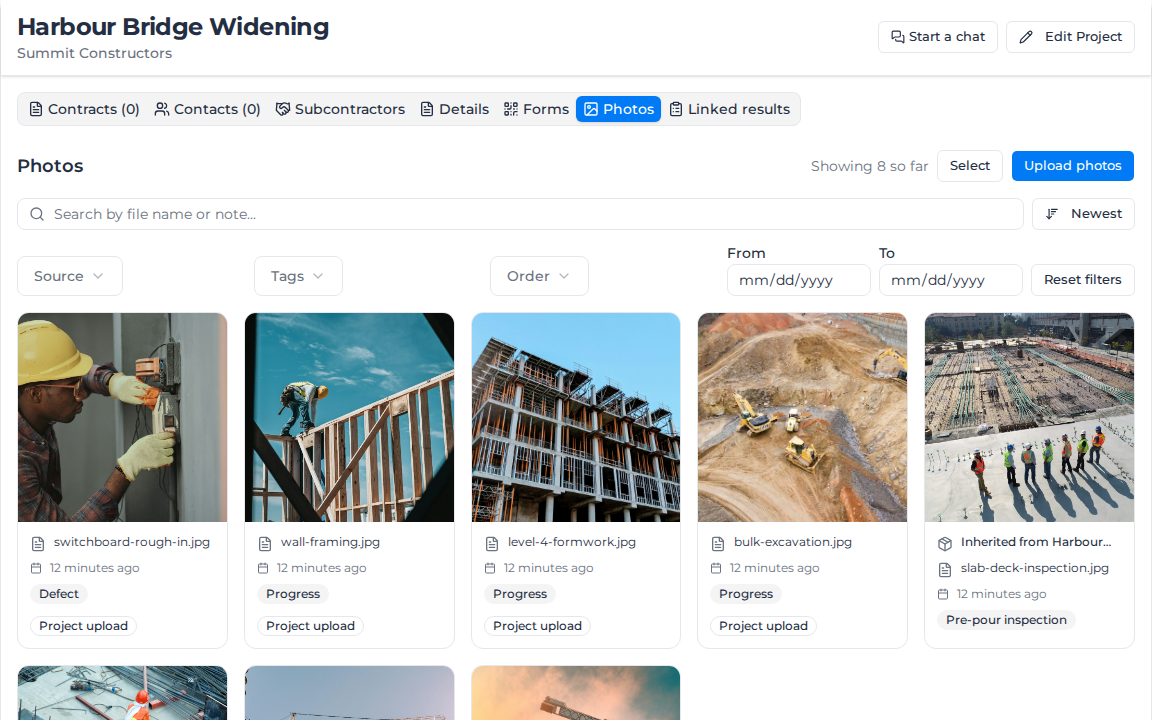
To send someone straight to a gallery, add ?tab=photos to the end of the project's or order's address. Clicking the tab does not change the address, so a copied link otherwise opens on the first tab.
A project also shows its order photos
A project's gallery holds the project's own photos plus the photos on every one of its orders. A photo from an order carries an Inherited from line naming that order.
It only works one way. An order's gallery shows that order's photos and nothing else, so a photo uploaded to the project never appears on its orders. Open the project when you want everything for a job, and the order when you want one order's evidence.
Where the photos come from
You don't file photos into the library. Upload them on the Photos tab, or attach them to the record they belong to, and they appear in the gallery once that record is saved. Each card carries a badge for its source:
- Project upload and Order upload: uploaded on the Photos tab. See Upload and tag photos.
- Workpack: attached to a workpack or to one of its activities.
- Field response: part of a form response linked to the project or order.
- Progress photo and Daily Record note: attached to an activity progress entry or a note on a Daily Record imported from Assignar Operations. The second badge uses your account's name for Daily Records.
- Assignar form result: part of a form result imported from Assignar Operations against an order.
- Project chat and Order chat: sent in a project or order chat, when your account copies chat photos to the gallery (see below).
A card shows at most two badges, and a count such as +1 stands for the rest. On a project, a photo inherited from an order shows its Inherited from line instead of an Order upload badge.
The three Assignar Operations sources reach only accounts that import from it. See Connect with Operations.
Add chat photos to the gallery
On accounts that use project and order chats, photos sent in those chats can be copied to the job's Photos tab. This is off until you turn it on, and you need to be a Manager or above with permission to manage messaging.
- In the sidebar, select Settings, then General, and go to the Messaging section.
- Under Direct messages, group chats and attachments, turn on Allow attachments. The chat photos switch stays greyed out until you do.
- Turn on Add chat photos to the project or order gallery.
- Select Save messaging controls.
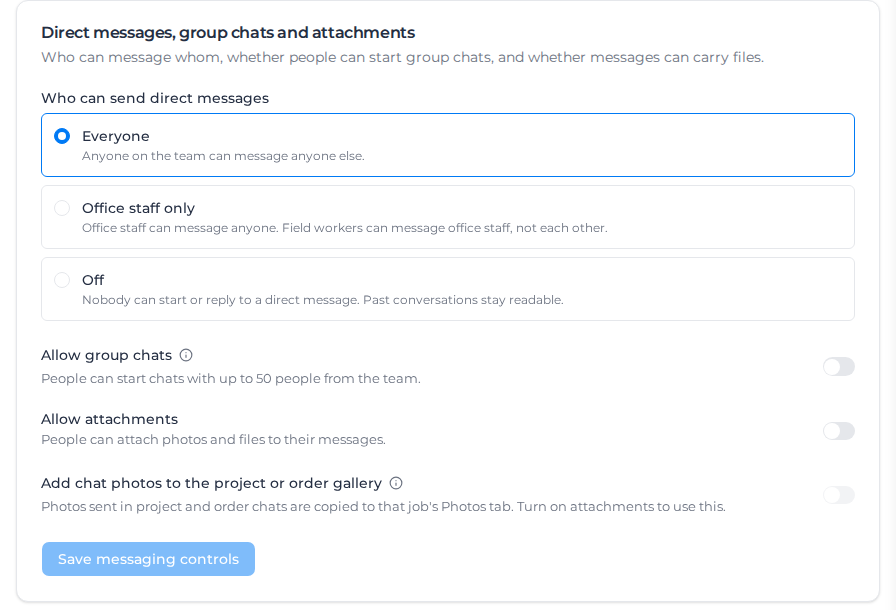
Only photos sent after you switch it on are copied, and they can take up to five minutes to appear. Photos in direct messages and announcements, and documents, are never copied. Anyone who can see the job's Photos tab sees the copied photos, including people who are not in the chat.
Removing a message removes its photo from the gallery. Turning the setting off stops new photos but leaves the ones already copied.
When a photo disappears
A photo stays in the gallery only while the record it came from exists. Delete the workpack attachment, the form response or the uploaded file and the photo leaves the gallery. A photo with more than one source badge stays until the last of those records is gone. Deleting an order removes its photos from the order and from the parent project.
If a photo uploaded to a project is missing from one of its orders, that is the one-way rollup above. Open the project to see it.
Who can see the photos
Anyone who can open a project or an order sees every photo in its gallery. There is no separate photo access to grant.
People on the Field or Visitor role never see the gallery: their navigation has no projects or orders, and a direct link shows them no photos.
Uploading, tagging and exporting each need their own permission, covered on the pages below.
In this section
- Find photos: search the gallery and narrow it by source, tag, order or date.
- Upload and tag photos: add photos from your computer and label them with tags.
- Turn on AI captions: let Assignar Pay describe your photos so you can search by what they show.
- Review linked results: see the workpacks and Field responses behind the photos.
- Export photos: package a selection into a zip file to download or email.