

Upload and tag photos
Upload photos to a project or an order from your computer, label them with tags, and read what a photo's date and location really record.
You add photos on the Photos tab of a project or an order. A photo belongs to the record you upload it to, so upload to the order when the photos are that order's: a project's gallery shows its orders' photos, but not the other way round.
Upload photos appears only for people with permission to add documents. Owners, Admins and Managers have it by default.
Upload photos
- Open the project or order and select the Photos tab.
- Click Upload photos.
- Under Click here to upload an image, choose one or more files, or drag them onto Drop photos here.
- Type a Note if you want one, up to 2,000 characters.
- Tick Include location to record where you are now. Read the next section first.
- Tick any Tags for these photos.
- Click Apply.
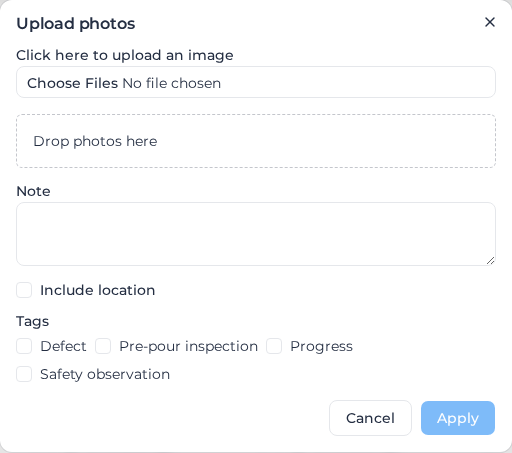
The Apply button spins until the whole batch is done; there is no progress for each file. The dialog closes once every file has uploaded, and the photos appear in the gallery.
The note, location and tags apply to every file in the batch. Upload photos that need different notes as separate batches.
You can upload JPEG, PNG, GIF and WebP images. Dragging files onto Drop photos here replaces the files you had already chosen, and anything that is not an image is dropped without a message. Closing the dialog discards your files and choices.
Tags only lists tags that already exist, and the block is missing when your account has no photo tags yet. See Create photo tags.
What "Include location" records
Include location records where you are when you click Apply, not where the photo was taken. Upload last week's site photos from the office and every one of them is located at the office.
Your browser asks for permission to share your location at that moment. If you refuse, or the lookup takes too long, the photos upload with no location and nothing tells you. Open one afterwards and check for a Location section before you rely on it.
What the date on a photo means
The date on a photo is never when the camera took it. For an upload, a Workpack photo or a Field response photo, it is when that record was created in Assignar Pay. For a photo imported from Assignar Operations, it is when Assignar recorded it.
The gallery sorts by this date, and the From and To filters use it. When the real date matters, put it in the Note.
Open a photo
Click a photo to open Photo Details. Beside the full-size image you see the File name, Size, the date, the Note from upload, the Location if one was recorded, the Tags, and the Caption when your account uses AI captions.

- Previous and Next step through the gallery.
- Open source record opens the record the photo came from.
- Download saves the photo. It needs the same document access as uploading, and is not offered on photos imported from Assignar Operations, which are stored in Assignar. Use Open source record to get those.
- Download original appears on photos marked Original camera file available, and saves the unstamped file straight from the camera. Only photos taken in a form with photo stamping switched on have one; see Field types.
When the image cannot be loaded, Preview unavailable shows in its place.
Tag photos
Tags label photos so you can filter by them. Adding or removing tags on photos already in the gallery needs permission to manage tags, which Owners, Admins and Managers have by default. Without it, Add tags and Edit tags are not shown, although you can still tick tags while uploading.
One photo
Open the photo and use Edit tags in Photo Details. Ticking or unticking a tag saves straight away. To add a new tag, type its name and click Create tag: the tag is created and put on the photo.
Several photos
- On the Photos tab, click Select.
- Click the photos you want, or click Select all loaded to select every photo the gallery has loaded so far.
- Click Add tags.
- In Edit tags, tick a tag to add it to every selected photo, or untick it to remove it from every selected photo. A dash means only some of the selected photos have that tag.
- To add a new tag, type its name and click Create tag.
- Click Apply tags.
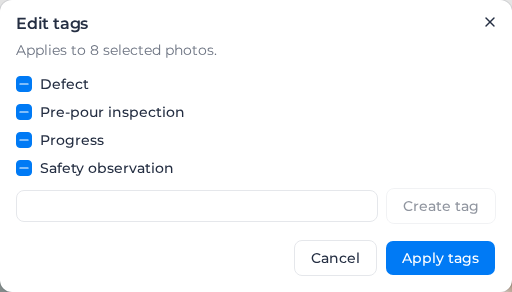
Nothing changes until you click Apply tags. Select all loaded replaces whatever you had already selected. You can tag up to 200 photos at a time: with more selected, Add tags greys out and You can tag up to 200 photos at a time appears.
From the tag
In the sidebar, select Settings, then Tags, and open an Evidence tag. The lower half of the dialog lets you search photos by file name and add them to the tag, or remove them, one at a time.
Create photo tags
- In the sidebar, select Settings, then Tags.
- Click Add Tag and enter a Label.
- Set Entity Type to Evidence. Only Evidence tags appear on the Photos tab.
- Click Save.
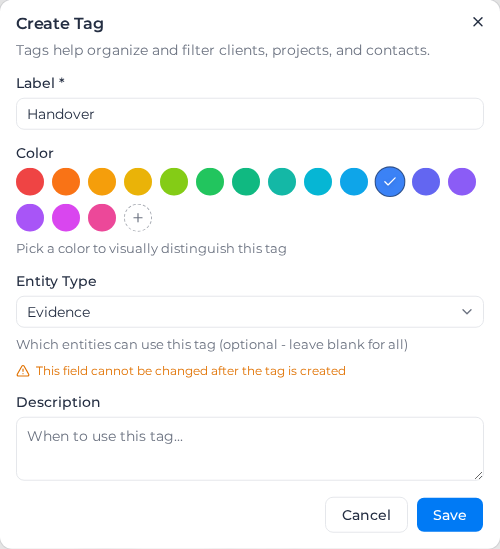
Entity Type cannot be changed after the tag is saved. If you picked the wrong type, create a new Evidence tag and delete the wrong one from its row menu.
One list of Evidence tags serves every project and order in the account.
When an upload or a tag change fails
- Choose a JPEG, PNG, GIF, or WebP image. The file is another format, often an iPhone photo saved as HEIC. Convert it to JPEG and upload it again.
- When an upload stops part-way, the dialog stays open with the error, and keeps the file that failed and the ones after it. The files before it are already in the gallery. Remove or replace the failed file and click Apply again.
- Could not create that tag. Try a different name. A photo tag with that name already exists; capital letters don't make a name different. Tick the existing tag instead.
- Something went wrong: a tag change did not save, and the tags on screen go back to what they were. Try again.