

Fix sign-in problems
What to do when a password, login code, email link, invitation or MFA code doesn't let you in.
Find the message you see on screen, then follow the fix under it. When nothing else works, a login code is the most dependable way in: it needs no password and works in any browser.
Your password is not accepted
The credentials entered are invalid means the email address or password is wrong. Check the address, then select Password forgotten? and reset your password, or sign in with a login code.
Please confirm your email address before signing in means you have created an account but not yet opened the confirmation email. Open the email titled Confirm your email and select Confirm Email. If you can't find it, see An email link has expired below.
A login code is not accepted
- You don't have an account with us yet. Sign up instead. No account uses that email address. Check it for typing mistakes, or create an account.
- The email link has expired. Please try again. after you enter a code: the code is wrong or has expired, even though the message mentions a link. Select Request New Code, send a new one and enter the code from the newest email.
An email link has expired
Sign-up confirmation, password reset and invitation links first open a page with a Continue button. The link is only used when you select Continue, so a company mail system that checks links before you open them does not use it up.
After you select Continue, the page can show Authentication Error with The email link has expired. Please try again. Each link works once, and a newer email of the same kind replaces the older one. What the page offers depends on the link:
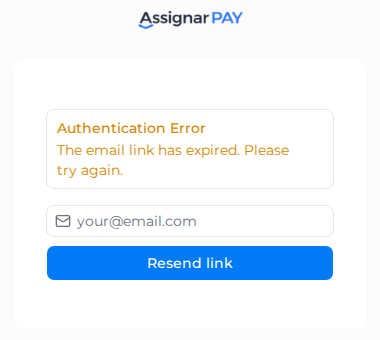
- Sign-up confirmation email: enter your email address on that page and select Resend link. The page shows Check your email!, and a new Confirm your email message arrives.
- Password reset email: select Reset Password and ask for a new reset email.
- Invitation or email change: select Sign In. For an invitation, ask the person who invited you to resend it (see below). For an email change, change your email again.
If you ask for too many emails in a short time, Assignar Pay shows You've reached the maximum number of email send attempts. Please try again later. Wait a while before asking again, or sign in with your password or with Google or Microsoft.
An email link shows "Sorry, we could not authenticate you"
Authentication Error with Sorry, we could not authenticate you. Please try again. appears when a link to confirm an email change is opened in a different browser from the one you requested it in. The change is still recorded. See Change your email.
It also appears when a Google or Microsoft sign-in is cancelled or fails part-way. Select Sign In and try again, or use your password or a login code.
An invitation link doesn't work
Invite not found or expired means the invitation has expired (they last 7 days) or was cancelled. Ask the person who invited you to resend it. You get the invitation email again, and it lasts another 7 days. If they removed the invitation, they send a new one instead. See Change or cancel an invitation.
Invitation Account Mismatch means you are signed in with a different email address from the one the invitation was sent to. Select Sign in with matching account and sign in with the invited address.
If you already accepted, sign in as usual. If the organization doesn't appear, ask an Owner or Admin to check that your Status on the Members tab is Active.
A form's QR code asks for your email
Scanning a QR code on a form, for example a site induction or a pre-start check, opens a page that asks for your email address. You don't need an invitation or an account first.
- Enter your email address and select Continue with Email.
- The page changes to Enter Verification Code. Open the email and type the 6-digit code under Enter the code from your email.
- Select Verify & Access Form.
If the code is wrong or has expired, the page shows Sorry, we could not authenticate you with the reason. Select Resend code and enter the code from the newest email; each new code replaces the one before. Select Change email if you typed the address wrongly.
Your MFA code is not accepted
Invalid Verification Code means the code from your authenticator app was wrong or had already changed.
- Wait for a fresh code and enter it straight away.
- Make sure you are reading the Assignar Pay entry in the app, not another account.
- Set your phone's date and time to update automatically.
If you no longer have the device with your authenticator app, see If you lose your authenticator.
You changed your email address
Sign in with the new address once you have confirmed the change. Until then, the old address still works. See Change your email.
Still stuck
Email support@assignar.com. Tell them the email address you sign in with, what you were doing, and the exact message on screen. Once you can sign in, you can also reach Support from inside Assignar Pay: see Get help.