

Change your email
Change the email address you sign in with, and confirm the change from your inbox.
The email address on your account is the one you sign in with, and the one Assignar Pay sends your login codes and reset links to. You change it in your personal settings.
- Select your name at the bottom of the sidebar, then Settings.
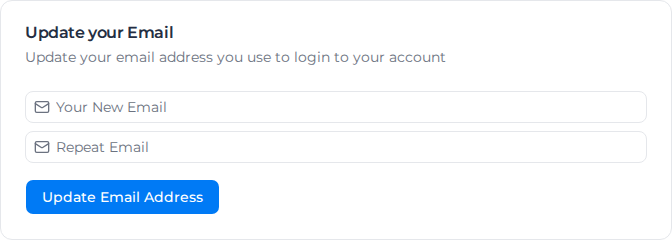
- Under Update your Email, enter the new address in Your New Email and again in Repeat Email.
- Select Update Email Address. The form shows We sent you an email to confirm your new email address.
- Open the email titled Confirm your email change and select Confirm Email Change. The email is sent to both your old and your new address: select the button in each.
Until you have confirmed, keep signing in with your old address. Afterwards, sign in with the new one. Your password, MFA and organization memberships stay as they were.
Open the confirmation emails in the browser you were using when you selected Update Email Address. In any other browser, the link shows Authentication Error with Sorry, we could not authenticate you. Please try again. The confirmation still counts: once the links in both emails have been opened, sign in with the new address.
If the two addresses differ, the form shows Emails do not match. Make sure you're using the correct email.