

Set up MFA
Turn on Multi-Factor Authentication with an authenticator app, sign in with it, and remove an authenticator you no longer use.
Multi-Factor Authentication (MFA) adds a second step to signing in. After your password, login code or Google or Microsoft sign-in, you enter a 6-digit code from an authenticator app on your phone, such as Google Authenticator, Microsoft Authenticator or Authy.
MFA belongs to you, not to an organization: once it is on, you are asked for a code every time you sign in, whichever organization you work in. Each person turns it on for themselves; nobody else can turn it on or off for you.
Turn on MFA
- Select your name at the bottom of the sidebar, then Settings.
- Under Multi-Factor Authentication, select Setup a new Factor.
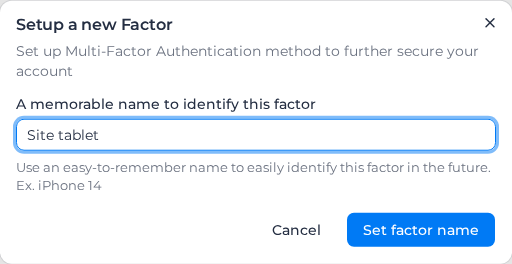
- In A memorable name to identify this factor, name the device you are about to use, for example
Work phone, and select Set factor name. - In your authenticator app, add an account and scan the QR code.
- Enter the 6-digit code the app shows and select Enable Factor.
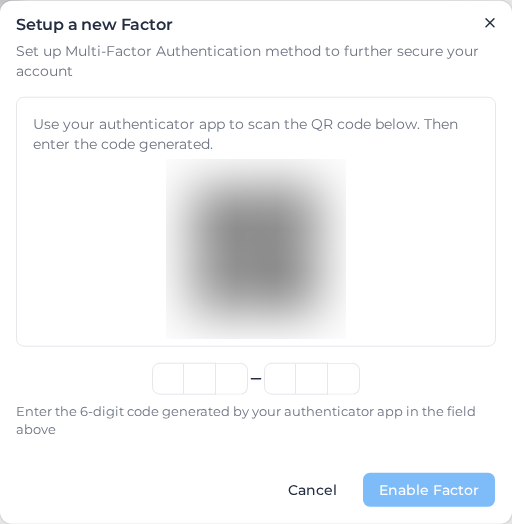
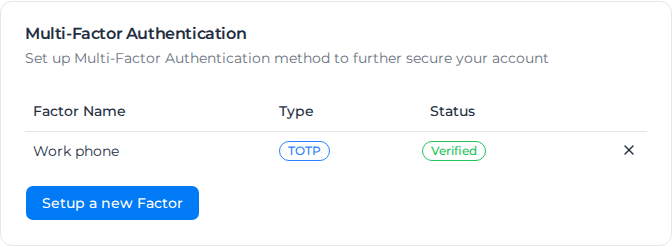
Assignar Pay confirms with Factor successfully enrolled, and the authenticator is listed with the status Verified.
The dialog shows only a QR code, with no setup key to type in, so you need an authenticator app that can scan.
There are no backup codes. To keep a way in if you lose your phone, set up a second device, such as a tablet, the same way. Each needs its own name.
If setup fails
- Setup Failed with Sorry, there was an error while setting up your factor. Please try again.: the code was wrong or had already changed. Close the dialog. The list now shows the name with the status Unverified. Remove it (see below) and start again.
- QR Code Error with Sorry, we weren't able to generate the QR code: you already have an authenticator with that name, often an Unverified one from an earlier attempt. Remove it or choose another name.
Sign in with MFA
Sign in as usual. Assignar Pay then shows Verify your account.
- Open your authenticator app and find the Assignar Pay entry.
- Enter its 6-digit code and select Submit Verification Code.
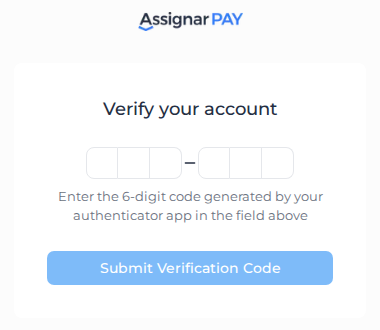
If you set up more than one authenticator, you first choose which one to use under Choose a factor to verify your identity.
If the code is wrong or has expired, the screen shows Invalid Verification Code. Codes change every 30 seconds: wait for a fresh one and enter it straight away. If every code fails, set your phone's date and time to update automatically.
Until you enter a code you can't open anything else in Assignar Pay. Every page you go to brings you back to Verify your account.
Remove an authenticator
- In Settings, under Multi-Factor Authentication, select ✕ at the end of the authenticator's row.
- Select Yes, unenroll factor.
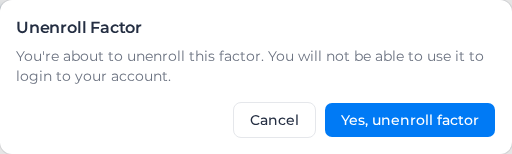
Assignar Pay confirms with Factor successfully unenrolled. That device no longer works for signing in. Once you have removed every verified authenticator, MFA is off and you are no longer asked for a code.
If you lose your authenticator
Without your authenticator you can't get past Verify your account, and there are no backup codes. Use a second authenticator if you set one up. Otherwise contact Assignar support: nobody in your own organization can remove MFA from your account.