

Decide approvals
Approve or reject what your workflows are waiting on, one at a time or in bulk, and export the record
When a workflow reaches an approval step, it pauses and sends a request to Approvals. You get a notification with a link, and the request waits there until someone it names approves or rejects it.
Owners, Admins and Managers can open Approvals by default. You can decide a request only if it names you or your role; everyone else who can open Approvals can see it, so that stuck work can be found. Linked financial requests also require the current financial approval or override permission, and their private details have separate financial access rules.
Open Approvals
Select Connect in the sidebar, then Approvals in the toolbar. If you can decide approvals but not build workflows, Connect opens straight on Approvals. The badge next to Approvals counts the requests waiting on you, not the whole organization.
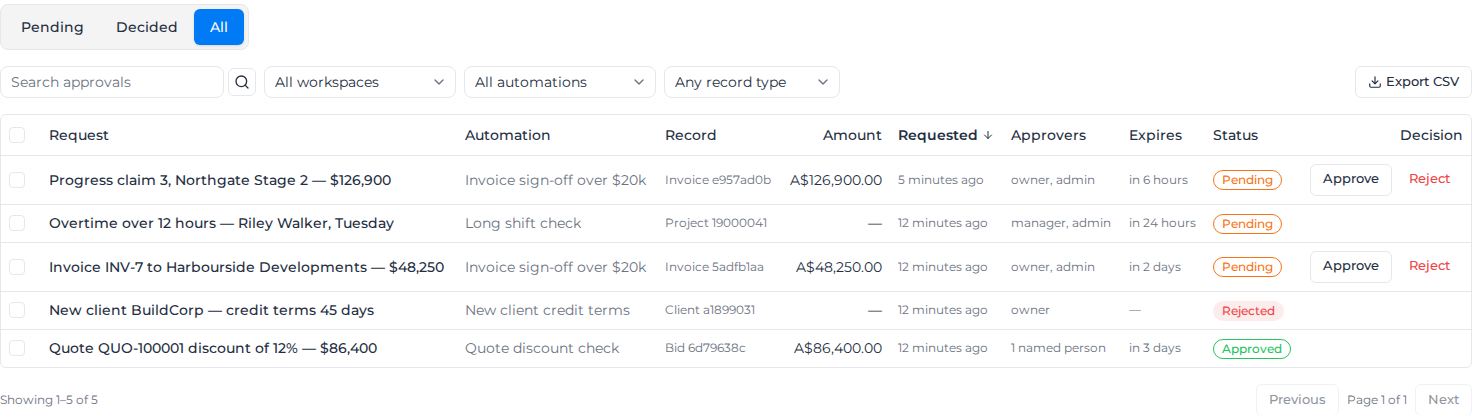
- Pending, Decided and All switch between what is waiting, what has been answered, and everything.
- Search approvals finds requests by title. All workspaces, All automations and Any record type narrow the list; the first two appear once there is more than one to choose from.
- Select Amount, Requested or Expires at the top of a column to sort by it.
The filters are part of the page address, so you can bookmark a view or send it to someone.
Approve or reject a request
- On the request's row, select Approve or Reject. The buttons appear only on requests you can decide.
- Add a comment. It is optional when approving, and a reason is required when rejecting: "A reason is required when rejecting." The person who raised the request and the permanent record both show it.
- Select Approve or Reject to confirm.
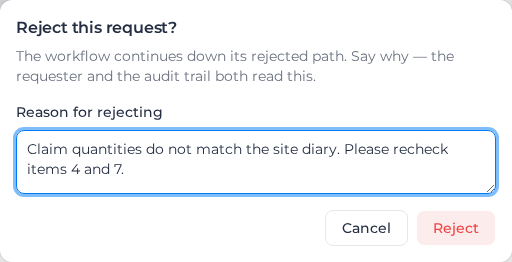
The toast says Decision recorded, and the paused workflow continues straight away.
Review a financial exception
Open the linked request's title and expand the action under Approvals and overrides. Read the request reason, expiry and any job scope before deciding. Job scope shows the order number and name, with a link when you can open the order. Order not available means the order has been removed or you cannot read it.
- Enter a Reason for the decision.
- For an action with a monetary value, you can set an Optional amount cap when you have access to the financial figures. Enter Currency (ISO code) and check the stated basis for the cap.
- Select Approve, Grant override for a blocked action, or Reject.
You must be one of the nominated approvers and hold the financial permission for that kind of request. Requests that require approval cannot be approved by the same person who requested them. The decision applies to the linked financial exception and resumes the workflow; the commercial action still checks that exception before proceeding.
Financial requests are reviewed individually, so they are excluded from the ordinary bulk approval controls. If the page says Financial details require financial viewing or decision permission., ask an owner or admin to review your access.
Decide several at once
- Tick the requests you want. The tick box is greyed out on rows you cannot decide. The box at the top of the list ticks every request you can decide.
- Select Approve selected or Reject selected.
- Write one comment for the batch; the dialog says it is recorded on all of them. Confirm.
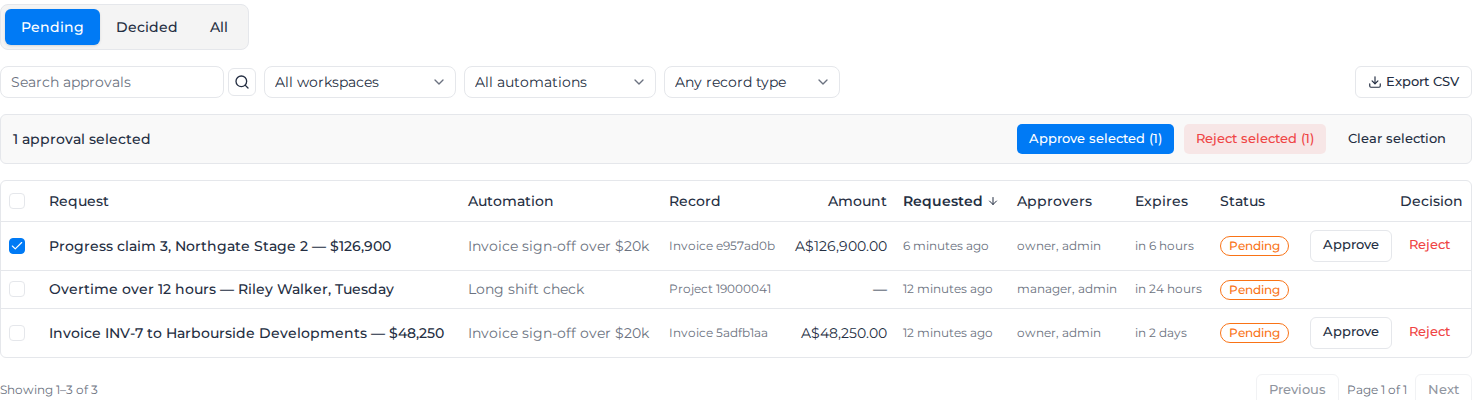
You can decide up to 50 requests at once. When some cannot be decided, the toast says how many were recorded and how many were not, for example because someone else decided them first.
Look at the whole request
Select a request's title to open it.
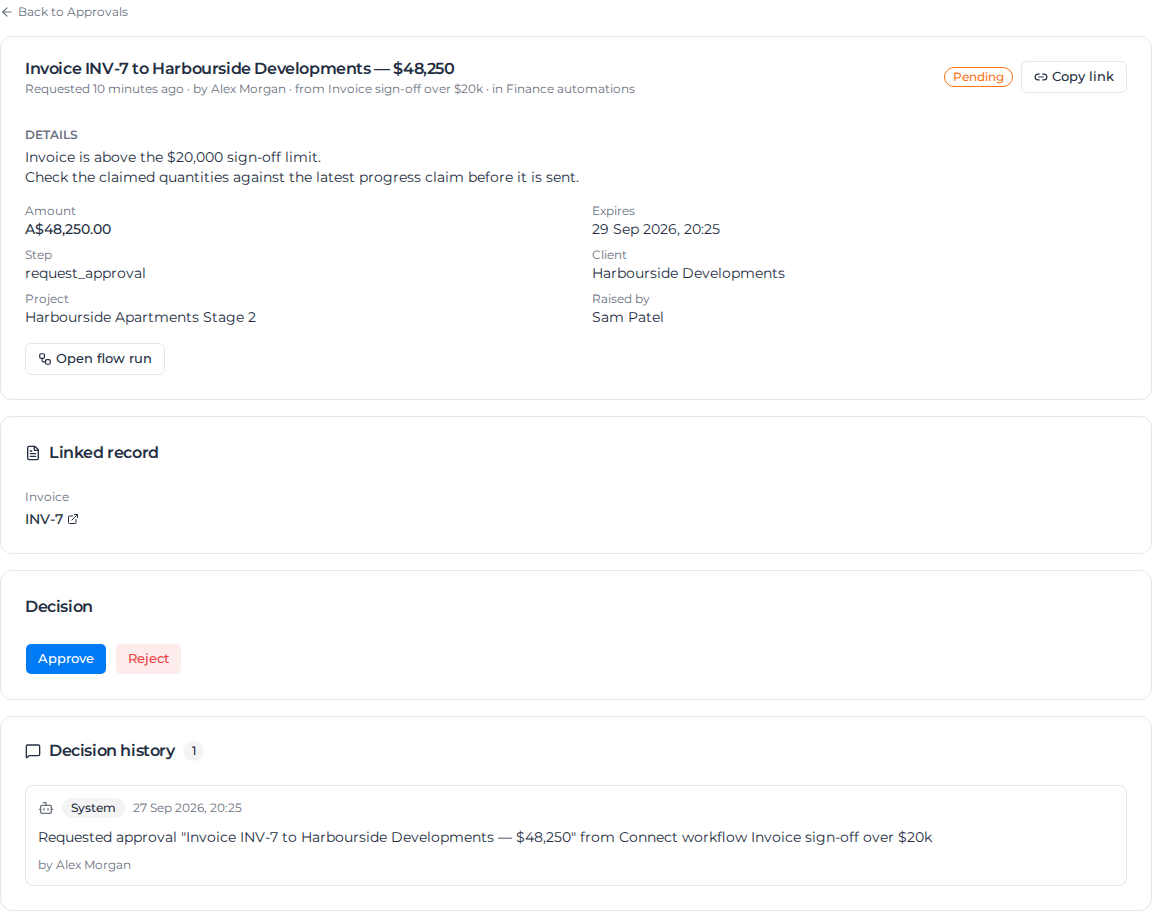
The request shows who raised it, from which automation and workspace, its details and context, and a link to the Linked record if you can open that record. Decision history lists when it was raised and decided. Copy link copies its address to send to someone, and Open flow run (for people who can build workflows) opens the paused run in the builder.
If the request is not yours to decide, it says "You can see this request, but it isn't yours to decide."
What each status means
| Status | Meaning |
|---|---|
| Pending | Waiting for a decision. The workflow is paused. |
| Approved or Rejected | Someone decided, and the workflow continued down that path. |
| Expired | The step's time limit passed without a decision, and the workflow continued as expired. |
| Cancelled | The workflow run ended before anyone decided. There is nothing left to decide. |
Export for audit
Export CSV downloads the requests in the current view, filters included: title, automation, workspace, linked record, amount, when and by whom it was requested, the approvers, status, who decided and when, and the comment.
When something looks wrong
You can see a request but cannot decide it. It does not name you or your role. Ask the person who built the workflow to add you.
A request says it was decided, but the workflow has not moved. Open the request. If Decision history says the workflow could not be resumed, Assignar Pay keeps retrying for several hours and never applies the same decision twice. If the run had already ended, for example it was cancelled in the builder, your decision is still recorded but there was nothing left waiting.
Someone else decided first. The first decision counts. Yours is refused, and in a batch that request is reported as already decided while the rest go through.
A workflow seems stuck. Open All, filter by that automation, and look for a request still Pending.