

Tag workers and assets together
Create a Resources tag when one tag should apply to workers and assets.
A Resources tag is for the people and the equipment on a job. You can apply it to a worker or an asset. It is not offered for a contact, a supplier, an attachment, a client, a project or an order.
Leave Entity Type as All entities when the tag should be available on those records as well.
Create a Resources tag
- In the sidebar, select Settings, then Tags.
- Select Add Tag.
- Enter a Label and pick a Color.
- Open Entity Type and select Resources.
- Select Save.
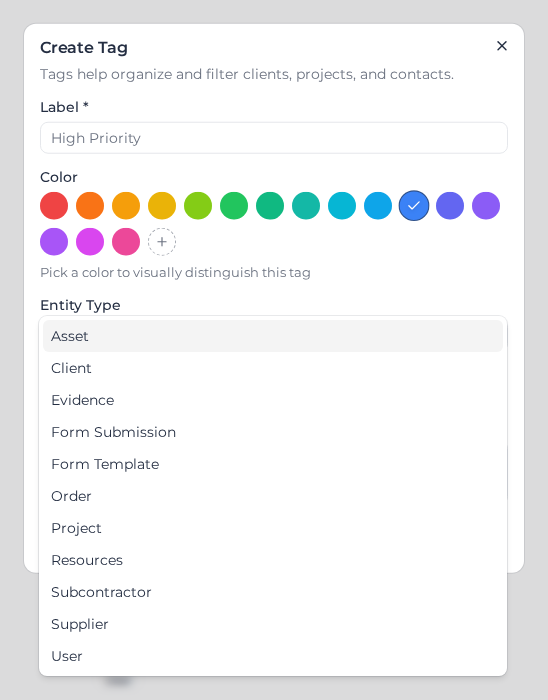
Entity Type cannot be changed after you save. The form shows This field cannot be changed after the tag is created. Create a new tag if you need a different type.
Apply the tag
On a worker or an asset, open Tags and select the tag. An attachment's tag list does not include it.
The same tag is included wherever you pick a worker tag, including form access, announcements, pay rates and filters that use a worker tag. It is also included when you pick a tag on an asset.
On the Tags list, open the row menu and select Edit to see who and what the tag is on. Each one is marked Worker or Asset.
Select Delete in that menu to remove the tag. It comes off every worker and asset that had it. Contacts, suppliers and attachments are left as they are.